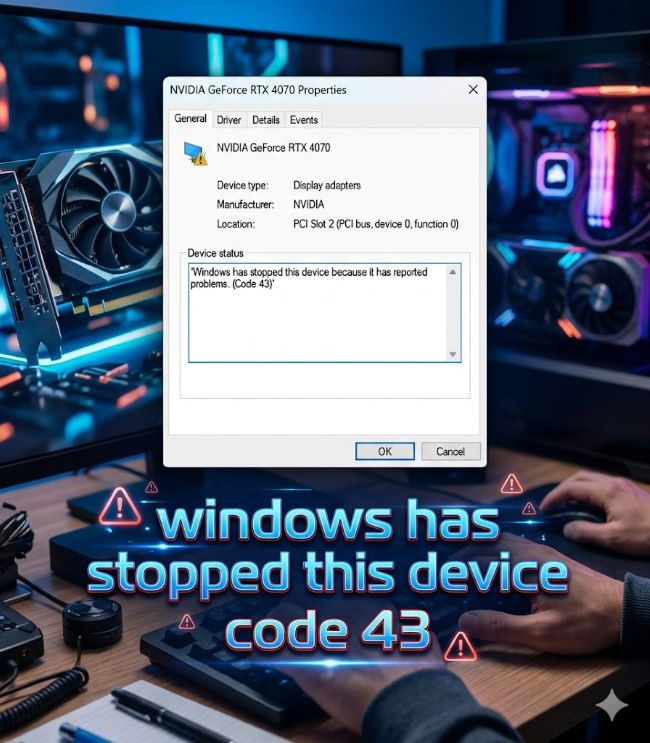
You’re working on your computer when suddenly a yellow exclamation mark appears in Device Manager. You click on it and see the message: “Windows has stopped this device because it has reported problems. (Code 43).” Your stomach drops. One of your devices has stopped working, and you have no idea why.
This Code 43 error message appears when Windows detects that a hardware device isn’t working properly. Whether it’s a graphics device driver, a USB device, a Bluetooth adapter, or an NVIDIA graphics card, the windows has stopped this device code 43 error prevents that device from functioning. The frustrating part is that Windows doesn’t tell you specifically what went wrong, only that something is broken.
The good news is that code 43 rarely indicates permanent hardware failure. Most of the time, code 43 device manager errors result from driver problems, connection issues, or software conflicts. With systematic troubleshooting, you can get your device working again.
Understanding Code 43 and Why It Happens
Code 43 is Device Manager’s way of saying “I don’t know what’s wrong, but this device reported a problem and I had to stop it.” The error appears when Windows loses communication with a hardware device or the device’s driver crashes.
The causes of windows code 43 vary depending on which device is affected:
Driver issues: Outdated, corrupted, or incompatible drivers cause the majority of code 43 errors. A driver update or Windows update can introduce a driver that conflicts with your hardware.
Hardware problems: Faulty connections, loose cables, defective USB ports, or failing hardware components trigger this error.
BIOS problems: An outdated or corrupted BIOS can cause communication issues between Windows and your hardware.
Power supply issues: USB devices in particular need sufficient power. Some devices won’t work when connected to unpowered USB hubs or front-panel USB ports.
Connection problems: A damaged USB cable, loose connection, or faulty port prevents proper device recognition.
Windows update conflicts: A Windows update can install a new driver that conflicts with your existing hardware.
Software conflicts: Third-party software sometimes interferes with device drivers, causing code 43 errors.
The key is identifying which category your problem falls into. GPU error code 43, for example, typically requires different troubleshooting than code 43 bluetooth windows 11 errors.
Check Device Manager First
Before diving into fixes, confirm that code 43 is actually your problem. Open Device Manager and look for devices with yellow exclamation marks.
Press Windows + X and select Device Manager. Expand the category containing your problematic device. Graphics cards appear under Display adapters. USB devices appear under Universal Serial Bus controllers. Bluetooth devices appear under Bluetooth.
Right-click the device with the exclamation mark and select Properties. Click the General tab. Under Device status, you’ll see the error message. If it says Code 43, you’re in the right place.
Simple Restart Method
Before attempting complex fixes, try the simplest solution first. Restart your computer completely.
Code 43 errors sometimes occur due to temporary software glitches or communication hiccups between Windows and your hardware. A restart clears these temporary states and refreshes all device communication.
Shut down your computer completely. Wait 30 seconds. Power it back on. Once Windows loads, check Device Manager again. Sometimes that’s all that’s needed.
Disable and Re-enable the Device
If a restart didn’t work, try disabling and re-enabling the device within Device Manager. This resets the device’s communication with Windows.
Open Device Manager and locate your problematic device. Right-click it and select Disable device. Click Yes when prompted. Wait about one minute. Right-click the device again and select Enable device.
Windows will attempt to reinitialize the device. Check the General tab of the device’s Properties. If you see “This device is working properly,” the problem is solved.
Update Your Device Driver
Driver problems cause most code 43 errors. Updating to the latest driver often resolves the issue.
In Device Manager, right-click your problematic device and select Update driver. Choose Search automatically for updated driver software. Windows searches Microsoft’s driver repository and your manufacturer’s servers.
If Windows finds an updated driver, it installs it automatically. Restart your computer when prompted.
For more control, download drivers directly from your device manufacturer’s website. This is especially important for graphics device driver error code 43 nvidia errors. Visit NVIDIA’s support page, find your graphics card model, and download the latest driver. Uninstall the current driver from Device Manager, then manually install the downloaded driver.
Roll Back a Driver
Sometimes a recent driver update causes windows code 43 errors. Rolling back to a previous driver version often fixes the problem.
In Device Manager, right-click your device and select Properties. Click the Driver tab. If a Roll Back Driver button appears, click it. Select Yes to confirm.
Windows reverts to the previous driver version. Restart your computer. If this fixes the code 43 error, avoid installing the problematic driver until the manufacturer releases an updated version.
Clean Install Graphics Drivers
For GPU error code 43 or nvidia error 43, a clean driver installation sometimes resolves stubborn issues.
Completely uninstall your current graphics driver using the manufacturer’s uninstall utility or Device Manager. Disconnect from the internet to prevent Windows from automatically installing drivers. Restart your computer.
Download the latest driver from your graphics card manufacturer’s official website. Install it. Restart again. Reconnect to the internet.
This clean installation removes any corrupted driver files or conflicting settings that might have caused the code 43 error.
Check Physical Connections
For USB devices showing code 43 errors, physical connection problems are surprisingly common.
Unplug the USB device and visually inspect the cable for damage. Check both the device end and the computer end. Look for bent pins, fraying, or obvious wear.
Try a different USB cable if you have one. Sometimes a cable becomes damaged without obvious signs.
Connect the device to different USB ports on your computer. Some devices require powered USB ports. If you’re using a USB hub, try connecting directly to your computer’s motherboard USB ports instead.
For laptop users, try all available USB ports. One port might be faulty while others work fine.
Disable Power Saving Features
USB power management can cause code 43 errors when Windows puts USB devices to sleep to save power.
Open Device Manager. Expand Universal Serial Bus controllers. Right-click USB Root Hub and select Properties. Click the Power Management tab. Uncheck “Allow the computer to turn off this device to save power.” Click OK.
Repeat this for all USB Root Hub devices in the list.
Additionally, disable USB Selective Suspend in your power settings. Press Windows + X and select Power Options. Click Additional power settings. Click Change plan settings. Click Change advanced power settings. Expand USB settings and set USB selective suspend setting to Disabled. Click Apply and OK.
Update Windows and BIOS
Outdated Windows or BIOS can cause device compatibility issues. Check for Windows updates and BIOS updates.
Press Windows + I to open Settings. Go to Update & Security. Click Check for updates. Install any available updates and restart your computer.
For BIOS updates, visit your computer manufacturer’s support website. Find your specific model and download the latest BIOS file. Follow the manufacturer’s instructions for updating. BIOS updates are more involved than Windows updates, so proceed carefully.
Test on Another Computer
If you have access to another computer, connect your problematic device to it. If the device works fine on another computer, the problem lies with your original computer’s drivers or settings.
If the device still shows code 43 on another computer, the hardware is likely faulty and needs replacement.
When to Seek Professional Help
If none of these troubleshooting steps fix your code 43 error, professional help might be necessary. Contact your device manufacturer’s support team or take your computer to a repair shop.
Bring documentation of the steps you’ve already tried. This helps the technician narrow down the problem faster.
Key Takeaways
- Windows has stopped this device code 43 indicates that Windows detected a problem with a hardware device and disabled it. The error appears in Device Manager with a yellow exclamation mark.
- Code 43 causes include outdated or corrupted drivers, hardware problems, BIOS issues, insufficient power, faulty connections, and Windows update conflicts.
- Start troubleshooting with the simplest steps: restart your computer, disable and re-enable the device, and check physical connections for USB devices.
- Code 43 device manager errors involving graphics cards often resolve with driver updates. For nvidia error 43, download drivers directly from NVIDIA’s website.
- Graphics device driver error code 43 nvidia cards sometimes require clean driver installation. Uninstall completely, restart offline, then install fresh drivers.
- Code 43 bluetooth windows 11 errors can resolve by disabling power-saving features in Device Manager’s Power Management settings.
- Update Windows and your computer’s BIOS to ensure compatibility with your devices. Outdated system software can cause code 43 errors.
- If the device works on another computer, the problem is software-related on your original computer. If it fails on multiple computers, the hardware is likely faulty.
- Keep device drivers updated to prevent future code 43 errors. Enable automatic driver updates or check manufacturer websites periodically.