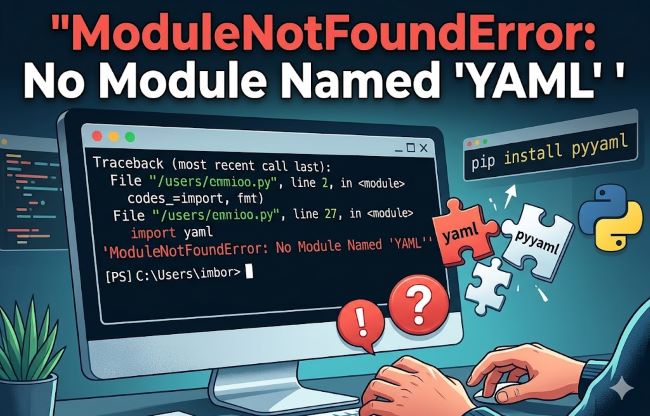
You’re working on a Python script that reads configuration files. You write the import statement at the top of your file and hit run. Immediately, you see a red error: ModuleNotFoundError: no module named ‘yaml’. Your script stops. You stare at the error, unsure why Python can’t find the yaml module when you swear you installed it.
This error is one of the most common issues Python developers encounter, and it’s also one of the simplest to fix once you understand what’s happening. The ModuleNotFoundError: No module named ‘yaml’ doesn’t mean your Python installation is broken. It means you’re missing a critical library that your code needs. This guide walks you through understanding why this error happens and exactly how to resolve it.
Understanding the Error
The ModuleNotFoundError: no module named ‘yaml’ occurs when your Python interpreter tries to import yaml but can’t find the library. Python has a standard library with built-in modules like os, sys, and json, but yaml isn’t one of them.
When you write import yaml in your code, Python searches for the yaml module in specific locations. If it can’t find it, Python raises this error. The solution involves installing the PyYAML package, which provides the yaml module for Python.
A common source of confusion: the package name is PyYAML, but you import yaml. The names are different, which trips up many developers. When you pip install yaml, it fails. When you pip install pyyaml, it works.
The Quick Fix: pip install pyyaml
The fastest solution is to install the PyYAML package using pip. Open your terminal or command prompt and run this command:
pip install pyyamlFor Python 3, you might need to use pip3:
pip3 install pyyamlOnce the installation completes, your import yaml statements should work without errors.
Why This Error Happens
Several reasons can trigger no module named ‘yaml’ error:
PyYAML is not installed: The most common cause. The yaml module isn’t available in your Python environment because you haven’t installed the PyYAML package.
Wrong Python version: You installed PyYAML for Python 3, but you’re running Python 2, or vice versa. Each Python version has its own set of installed packages.
Virtual environment mismatch: You installed PyYAML globally, but you’re running code inside a virtual environment where it’s not available. Virtual environments have isolated package installations.
IDE using wrong Python interpreter: Your IDE might be set to use a different Python installation than the one where PyYAML is installed.
Typo in package name: You ran pip install yaml instead of pip install pyyaml. The incorrect name fails silently or installs the wrong package.
Installation Methods for Different Environments
The installation command varies depending on your setup:
Standard Python with pip:
pip install pyyamlPython 3:
pip3 install pyyamlWith permissions issues:
sudo pip3 install pyyaml
pip install pyyaml --user
If pip is not in your PATH:
python -m pip install pyyaml
python3 -m pip install pyyaml
Windows with py command:
py -m pip install pyyamlAnaconda:
conda install pyyaml
conda install -c conda-forge pyyaml
Jupyter Notebook:
!pip install pyyamlChoose the command that matches your system and Python setup.
Verifying the Installation
Before assuming installation failed, verify that PyYAML is actually installed. Run this command:
pip show pyyamlOr use the module approach:
python -m pip show pyyamlYou should see output showing the PyYAML version and location. If you see nothing, the package isn’t installed.
You can also check what packages are installed:
pip list | grep -i yamlThis searches for anything with yaml in the name.
Virtual Environment Issues
Virtual environments often cause ModuleNotFoundError because they’re isolated from your system’s global packages. If you installed PyYAML globally but you’re using a virtual environment, you need to install it inside the virtual environment.
First, activate your virtual environment:
On Linux or macOS:
source venv/bin/activateOn Windows:
venv\Scripts\activateThen install PyYAML:
pip install pyyamlAlways activate your virtual environment before installing packages if you want to use them in that environment.
Python Version Mismatches
You might have multiple Python versions installed. If you installed PyYAML for Python 3.8 but you’re running Python 3.10, the module won’t be found.
Check your Python version:
python --version
python3 --version
Check which pip corresponds to which Python:
which python
which pip
which python3
which pip3
On Windows, use where instead of which:
where python
where pip
Once you identify the correct version, install PyYAML with the matching pip:
pip3.10 install pyyamlReplace 3.10 with your actual Python version.
IDE-Specific Issues
PyCharm and other IDEs create separate virtual environments for each project. If you’re using PyCharm, you can install PyYAML directly from the IDE.
When you import yaml and get an error, PyCharm shows a notification suggesting package installation. Click Install to install PyYAML in your project’s virtual environment.
Alternatively, use PyCharm’s terminal to run pip install pyyaml. The IDE’s terminal uses the project’s virtual environment automatically.
For VS Code, use the integrated terminal to pip install pyyaml. Make sure you’ve activated the correct virtual environment in the terminal.
Checking Your Python Path
Sometimes PyYAML installs in a location that’s not in your Python path. Check what’s in your path:
import sys
print(sys.path)
Run this in your Python interpreter. You’ll see a list of directories where Python searches for modules.
If PyYAML installed somewhere outside these directories, you might need to add it to your path or reinstall it properly.
Common Mistakes to Avoid
Using pip install yaml instead of pip install pyyaml: This is the most common mistake. The package is named PyYAML, not yaml. Always use pip install pyyaml.
Creating a file named yaml.py: If you name your Python file yaml.py, it shadows the actual yaml module, causing import yaml to fail. Rename your file to something else.
Creating a variable named yaml: If you assign something to a variable called yaml, it overwrites the imported module. Use different variable names.
Not restarting your IDE: After installing PyYAML, restart your IDE completely. Some editors cache the module list and don’t immediately recognize new packages.
Testing Your Installation
Once you’ve installed PyYAML, test the import:
import yaml
print(yaml.__version__)
Run this code. If it prints a version number without error, installation succeeded. You can now use yaml in your projects.
Try loading a simple YAML document:
import yaml

document = """
name: John
age: 30
city: New York
"""

data = yaml.load(document, Loader=yaml.Loader)
print(data)
This should output a dictionary with your YAML data. If it works, PyYAML is properly installed.
Understanding the YAML Module
The yaml module (provided by PyYAML package) lets you parse and generate YAML documents in Python. YAML is a human-readable data format commonly used for configuration files.
Common YAML operations:
Loading YAML: Converting a YAML string or file into Python objects.
Dumping YAML: Converting Python objects into YAML format.
SafeLoader vs Loader: SafeLoader is safer but more restrictive. Loader is more permissive but potentially risky with untrusted data.
After installing PyYAML, you can work with YAML files in your Python projects without the ModuleNotFoundError.
Key Takeaways
- ModuleNotFoundError: no module named ‘yaml’ occurs because PyYAML is not installed in your Python environment. You cannot import yaml without installing the package first.
- The correct command is pip install pyyaml, not pip install yaml. The package name is PyYAML, but you import yaml in your code.
- Virtual environments have isolated package installations. Always activate your virtual environment before installing packages you want to use in it.
- Check your Python version and use the correct pip version to install PyYAML. Multiple Python installations can cause version mismatches.
- Verify installation by running pip show pyyaml. This confirms the package is installed and shows its version.
- IDEs like PyCharm create project-specific virtual environments. Install PyYAML in your IDE’s terminal to ensure it’s available to your project.
- Don’t create files or variables named yaml because they shadow the actual yaml module and cause import yaml to fail.
- Restart your IDE after installing PyYAML. Some editors cache module information and don’t recognize new packages until restart.