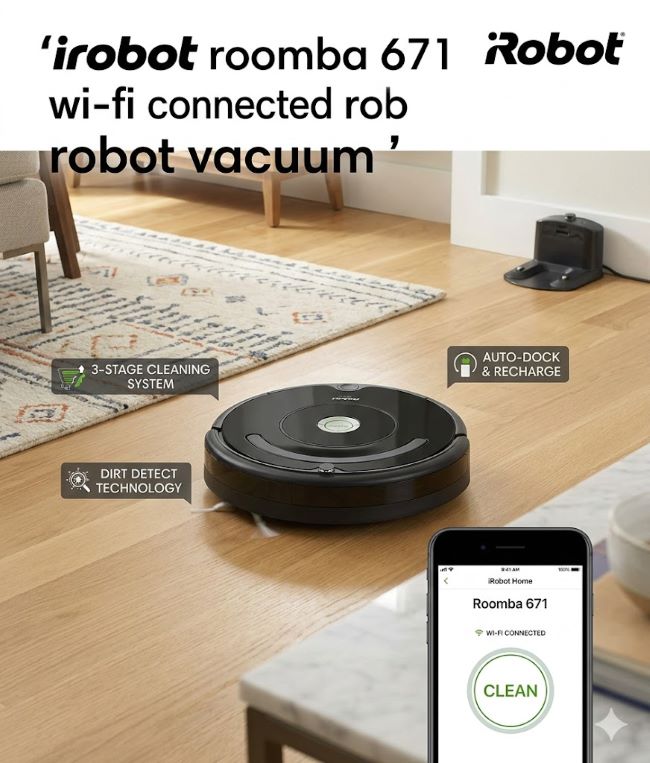
Picture this: you’re leaving work and realize your floors are a mess. You open your phone, tap an app, and your vacuum starts cleaning. By the time you get home, your floors are spotless. This isn’t a dream. The iRobot Roomba 671 Wi-Fi connected robot vacuum makes this possible.
The Roomba 671 sits at the entry level of iRobot’s lineup, but it packs the essential features serious clean requires. With WiFi connectivity, voice control, and the iRobot HOME app, this robot vacuum brings smart home convenience to an affordable price point. Whether you’re new to robot vacuums or looking for a second unit for another floor, understanding what the Roomba 671 offers helps you decide if it’s right for your home.
Understanding the Roomba 671
The iRobot Roomba 671 Wi-Fi connected robot vacuum operates on the principle that your vacuum should work while you focus on life. This WiFi-connected model combines core cleaning performance with smart home integration. It’s not packed with advanced navigation features like mapping or room-specific cleaning, but it handles the fundamental job exceptionally well.
The Roomba 671 uses a 3-Stage Cleaning System that loosens, lifts, and suctions dirt from any floor type. Dual Multi-Surface Brushes grab debris from carpets while an Edge-Sweeping Brush handles corners and baseboards. Dirt Detect Technology recognizes heavily soiled areas and increases cleaning time in those spots.
At just 3.5 inches tall, this vacuum slides under beds and furniture that traditional vacuums can’t reach. It weighs only 5 pounds, making it easy to move between rooms or carry upstairs if needed.
Battery Life and Runtime
The Roomba 671 runs for up to 90 minutes on a full charge. For most homes, this runtime cleans the entire house on a single cycle. If your home is larger, the vacuum automatically returns to its Home Base when the battery runs low, recharges, and can resume cleaning.
Battery runtime depends on floor type. Tile and hardwood use less power than deep carpet cleaning, so actual runtime varies. The lithium-ion battery provides reliable performance across hundreds of charging cycles.
The 3-Stage Cleaning System
The 3-Stage Cleaning System defines how the Roomba 671 performs. The first stage uses agitation to loosen stubborn dirt. The second stage uses dual brushes that lift debris. The third stage applies suction power to capture everything from the surface.
This multi-stage approach works on all floor types. The Auto-Adjust cleaning head detects whether you’re cleaning carpet or hardwood and adjusts brush height accordingly. This prevents the vacuum from getting stuck while ensuring optimal contact with the floor.
Dual Multi-Surface Brushes feature an improved design that requires less maintenance than older models. The brushes clean themselves most of the time, extending the time between manual cleaning sessions.
Getting Started: How to Set Up Roomba
How to set up Roomba begins with unboxing and charging. Remove the Roomba 671, its Home Base, accessories, and documentation. Place the Home Base against a wall on a flat surface with at least four feet of clearance in front of it.
Plug the Home Base into a power outlet. Position your Roomba on the Home Base with its charging contacts aligned. Let it charge for at least three hours before the first cleaning. The CLEAN button on top illuminates green when fully charged.
After charging, press CLEAN to start your first cycle. Let the Roomba complete its full run and return to the base naturally. This first cycle conditions the battery for maximum longevity. Don’t stop it midcycle or manually return it to the dock.
How to Connect Roomba to WiFi
How to connect Roomba to WiFi is straightforward using the iRobot HOME app. Download the iRobot HOME app from your phone’s app store and create an account. This account lets you control your Roomba from anywhere.
Open the iRobot HOME app and tap the plus icon or Add Your Product button. The app searches for nearby iRobot devices. Once it finds your Roomba 671, the app guides you through the connection process.
Ensure your phone is connected to the WiFi network you want to use. The app displays your network name and prompts you to enter your WiFi password. Important: use only alphanumeric characters in your password for the setup to work smoothly.
On the Roomba itself, press and hold the SPOT (crosshairs) and Home (house) buttons simultaneously for one to two seconds. You’ll see the light activate or hear a beep. This activates the Roomba’s internal WiFi network, allowing your phone to discover it.
The app continues guiding you through setup. Once complete, you see a confirmation message. Your Roomba 671 is now WiFi-connected and controlled through the iRobot HOME app.
Understanding the Roomba Home App
The Roomba home app provides the hub for managing your Roomba 671. The main screen displays a large CLEAN button, mirroring the robot itself. Tap it to start cleaning, or access other options:
Schedule cleaning: Set times for automatic cleaning on specific days.
Spot cleaning: Send your Roomba to clean a specific area.
View cleaning history: See what areas your Roomba cleaned and for how long.
Get notifications: Receive alerts when cleaning starts, finishes, or encounters issues.
Rename your Roomba: Change the default name for voice command purposes.
The app learns your cleaning habits and suggests cleaning schedules based on your routine. It even suggests extra cleaning during high pollen counts or peak pet shedding seasons.
How to Reconnect Roomba to WiFi
How to reconnect Roomba to WiFi applies when you change networks, move your Home Base, or need to reset the connection. Open the Roomba HOME app and go to Settings. Select WiFi Settings and Change product WiFi.
Confirm the change. You’ll see an option to Change WiFi Network. The app displays available networks. Select your new WiFi network and enter the password. The process mirrors the initial setup.
Sometimes the Roomba creates its own temporary WiFi network to help with pairing. This is normal. Once you confirm the new network details, your Roomba automatically switches to your standard WiFi connection.
If you have multiple Roomba models, each can connect independently. The HOME app manages all your robots in one place.
Voice Control Integration
The Roomba 671 works with Amazon Alexa and Google Assistant. After WiFi connection, you can use voice commands:
“Alexa, tell Roomba to clean” “Hey Google, start Roomba cleaning” “Alexa, send Roomba to dock”
Voice commands work from anywhere you can reach your voice assistant. This lets you start cleaning before you arrive home or when you remember you forgot to vacuum.
Troubleshooting Connection Issues
Roomba not connecting to WiFi sometimes happens. First, confirm your phone is connected to the correct network. The Roomba must use the same WiFi network as your phone during setup.
Check your WiFi password for special characters. The Roomba 671 has difficulty with special characters like “&” or “!” in passwords. Use only numbers and letters if possible.
Ensure your WiFi network is visible and broadcasting. Some routers have a setting to hide the network name. The Roomba can’t find hidden networks, so broadcast your WiFi normally during setup.
Move closer to your router if your Roomba struggles to connect. Distance and obstacles weaken the signal. Once connected, distance matters less.
Restart both devices if issues persist. Power off your Roomba, unplug your router for 30 seconds, then restart both. This clears temporary connection glitches.
Maintenance and Care
Regular maintenance keeps your Roomba 671 operating smoothly. Empty the dust bin after each use. Even when the bin appears empty, residual dust affects performance.
Clean the filter after each use using a soft brush. Tap debris into a trash can rather than rinsing with water unless the manual specifies otherwise.
Inspect the front wheel regularly. Hair and debris wrap around it, potentially damaging flooring. Clean it monthly.
Wipe sensors and charging contacts with a dry cloth to maintain accuracy and charging reliability.
Occasionally check the side brush for tangled hair. Remove hair with scissors or a small tool.
Who Should Consider the Roomba 671
The iRobot Roomba 671 suits people new to robot vacuums who want WiFi and app control without excessive features. It’s ideal for those with straightforward floor plans and consistent traffic patterns.
The WiFi connectivity and Alexa support make this model popular during sales events like Prime Day and Black Friday, where significant discounts appear.
This robot vacuum works well as a second unit for another floor. Many owners use the 671 upstairs while having a more advanced model downstairs.
The Roomba 671 isn’t ideal for homes with complex layouts, multiple room types, or those wanting advanced navigation. If you need room-specific cleaning or mapping capabilities, consider higher-end models.
Key Takeaways
- The iRobot Roomba 671 Wi-Fi connected robot vacuum offers entry-level performance with essential smart home features like WiFi connectivity and voice control.
- How to connect Roomba to WiFi involves downloading the iRobot HOME app, creating an account, pressing activation buttons on the Roomba 671, and following in-app instructions to enter your WiFi network credentials.
- The Roomba home app provides centralized control for starting, scheduling, and monitoring cleaning cycles from anywhere.
- The 3-Stage Cleaning System uses agitation, brushing, and suction to clean all floor types effectively. Dirt Detect Technology focuses extra cleaning on soiled areas.
- Battery runtime reaches 90 minutes, sufficient for most homes on a single charge. The Roomba automatically returns to its Home Base when the battery runs low.
- How to set up Roomba requires proper initial charging, placement of the Home Base, and completing the WiFi connection process through the iRobot HOME app.
- How to reconnect Roomba to WiFi uses the same app settings. The process works smoothly when you move, change networks, or need to reset the connection.
- Roomba not connecting to WiFi often results from special characters in passwords, hidden network names, or weak signal strength. Restart both devices to resolve most connection issues.
- Regular maintenance includes emptying the dust bin after each use, cleaning the filter, checking the front wheel, and wiping sensors with a dry cloth.