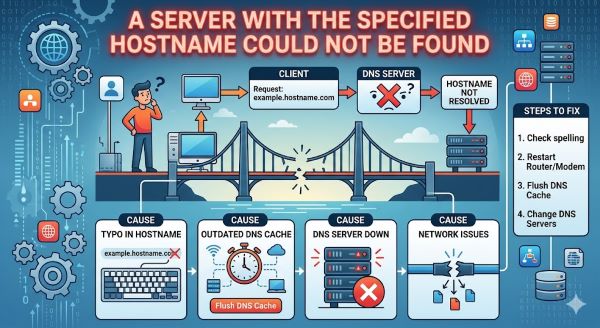
You try to connect to a website or server. The system displays an error message: a server with the specified hostname could not be found. You don’t understand what went wrong. The hostname seems right. The internet works.
This error confuses most people because it’s technical without being clear. But understanding what this message means helps you fix it. In most cases, you can resolve it yourself without technical support.
This guide explains what this error means, why it happens, and concrete steps to fix it on your device and network.
Understanding Hostnames and Server Resolution
What a Hostname Is
A hostname is a human-readable name for a server or website. Examples include google.com, github.com, or mail.company.com.
Computers don’t understand human-readable names. They use IP addresses like 142.250.185.46 instead. A hostname is just a friendly label for an IP address.
When you type a hostname into your browser or connection tool, your computer looks up the IP address associated with it. Then it connects to that IP address.
A server with the specified hostname could not be found means the system tried to look up the IP address for that hostname and failed. The lookup didn’t return an IP address.
How Hostname Resolution Works
Your computer sends a request to a DNS server asking: “What’s the IP address for this hostname?”
The DNS server looks in its database and returns the matching IP address.
Your computer uses that IP address to connect to the server.
If the DNS server can’t find the hostname in its database, it returns an error. That’s when you see “a server with the specified hostname could not be found.”
Common Causes of Hostname Resolution Errors
The Hostname Is Misspelled
The most common cause is a simple typo. If you type the hostname wrong, the DNS server can’t find it.
Examples of common mistakes:
- Typing “gogle.com” instead of “google.com”
- Typing “github.co” instead of “github.com”
- Missing parts of the hostname like typing “mail.company” instead of “mail.company.com”
Check your hostname carefully. Look for common mistakes like transposed letters, missing characters, or wrong domain extensions.
DNS Server Problems
Your DNS server might not be working. If your ISP’s DNS is down, hostname lookups fail.
Sometimes DNS servers get overwhelmed with traffic. During peak times, lookups might fail.
Occasionally, DNS servers have configuration problems. They can’t properly look up hostnames.
Your Network Connection Is Unstable
Unstable connections sometimes interrupt DNS lookups before they complete.
If your WiFi connection is weak or drops frequently, hostname resolution fails.
Switching to a wired connection sometimes fixes this issue.
The Server Has DNS Problems
The server you’re trying to reach might have DNS configuration issues.
If the server’s hostname isn’t properly registered with a domain registrar, DNS lookups fail.
If DNS records for that hostname are outdated or incorrect, lookups fail.
This is a server-side problem that you can’t fix directly.
Your Network Software Is Interfering
Firewalls, proxies, or security software sometimes blocks DNS requests.
VPN software occasionally causes DNS routing problems.
Browser extensions sometimes interfere with hostname resolution.
Troubleshooting Hostname Resolution Errors
Step One: Verify the Hostname Spelling
This is the most important first step. Check the hostname carefully.
Compare what you typed against the source you got it from.
Type it again slowly. Pay special attention to common problem areas like:
- Domain extensions (.com, .org, .net, etc.)
- Subdomains (mail., www., etc.)
- Transposed letters or numbers
If you’re copying and pasting, ensure you got the entire hostname without extra spaces.
Step Two: Check Your Internet Connection
Confirm your internet works by trying other websites.
Try accessing a major website like google.com or wikipedia.org. If those work, your basic connection is fine.
If major websites don’t work either, your internet is down or your DNS is completely broken.
Try switching between WiFi and cellular data if you have both available.
Try a wired connection if you’re currently on WiFi.
Step Three: Restart Your Router
Most network problems resolve with a router restart.
Unplug your router. Wait 30 seconds. Plug it back in.
Wait for it to fully boot. This usually takes a minute or two.
Try accessing the hostname again.
This simple step clears temporary DNS caching issues.
Step Four: Clear Your DNS Cache
Your computer caches hostname lookups. Cached data sometimes becomes corrupted.
On Windows, open Command Prompt as Administrator and type: ipconfig /flushdns
On Mac, open Terminal and type: sudo dscacheutil -flushcache
Press Enter and provide your password if prompted.
Wait a moment for the cache to clear.
Try accessing the hostname again.
Step Five: Try a Different DNS Server
Your ISP’s DNS might have issues. Try a public DNS service.
Google’s public DNS: 8.8.8.8 and 8.8.4.4
Cloudflare’s public DNS: 1.1.1.1 and 1.0.0.1
Quad9’s public DNS: 9.9.9.9 and 149.112.112.112
Change your DNS settings to use one of these public services.
On Windows: Go to Settings > Network and Internet > Change adapter options > Right-click your connection > Properties > Internet Protocol Version 4 > Use the following DNS server addresses > Enter the public DNS IPs.
On Mac: Go to System Preferences > Network > Advanced > DNS > Click the plus button and add the public DNS servers.
Try accessing the hostname again. Public DNS services are often more reliable than ISP DNS.
Step Six: Disable VPN and Proxy
VPNs and proxies sometimes interfere with hostname resolution.
If you have a VPN enabled, disable it temporarily.
Check your browser for proxy settings and disable them.
Check your system settings for proxy configuration and disable it.
Try accessing the hostname again.
Step Seven: Disable Firewall and Security Software
Firewalls and security software sometimes block DNS requests.
Temporarily disable your firewall to test.
Disable any antivirus HTTPS inspection features.
Try accessing the hostname again.
If it works with security software disabled, configure it to allow DNS traffic.
Step Eight: Check Hosts File
Your computer has a local hosts file that overrides DNS for certain hostnames.
Malware sometimes adds entries to this file that cause a server with the specified hostname could not be found errors.
On Windows: Open C:\Windows\System32\drivers\etc\hosts in Notepad.
On Mac: Open /etc/hosts in Terminal using nano or another text editor.
Look for any suspicious entries. Legitimate entries are usually just localhost and local machine references.
Delete any suspicious entries.
Save the file.
Try accessing the hostname again.
Advanced Troubleshooting
Using Command Line Tools
Open Command Prompt or Terminal.
Type: nslookup hostname.com (replacing hostname.com with your actual hostname)
This command directly queries DNS for the hostname.
If it returns an IP address, DNS is working and the hostname exists.
If it shows an error, DNS lookup is failing.
Testing From Different Networks
If you have mobile data, disable WiFi and try on cellular.
If it works on cellular but not WiFi, your WiFi or router is the problem.
Try accessing the hostname from a different WiFi network if available (coffee shop, library, friend’s house).
If it works elsewhere, your home network is the problem.
If it fails everywhere, the hostname or server has issues.
Checking Server Status
Search online for the hostname plus “status” or “down.”
Many servers have status pages that show whether they’re operating.
If the server is down or having DNS issues, everyone will experience this error.
Check social media for reports of outages.
Verifying DNS Propagation
If you recently set up a new hostname or changed DNS records, propagation takes time.
DNS changes can take up to 48 hours to propagate worldwide.
Visit dnschecker.org or mxtoolbox.com to check DNS propagation.
These tools show whether DNS records have propagated to different regions.
If records haven’t propagated yet, wait a few hours and try again.
Hostname Resolution Issues on Specific Platforms
Email Client Issues
Email clients sometimes fail with hostname resolution errors when connecting to mail servers.
Verify you’re using the correct mail server hostname (mail.company.com, not company.com).
Ensure you have the correct port number (usually 587 for SMTP, 993 for IMAP).
Check that your email username and password are correct.
SSH and Remote Access Issues
SSH connections require correct hostname resolution.
Verify the hostname or IP address of the server you’re trying to access.
Check your SSH configuration file for incorrect hostname entries.
Try using the server’s IP address directly instead of the hostname.
Internal Network Issues
On corporate networks, hostnames sometimes don’t resolve correctly.
Ask your IT department whether the hostname should resolve on your network.
Check your network settings for correct DNS servers.
Some corporate networks require VPN connection to resolve internal hostnames.
Preventing Future Hostname Resolution Errors
Best Practices
Bookmark important websites and server addresses. This reduces typing errors.
Use copy and paste when typing long hostnames. Copying reduces typos.
Keep your operating system updated. Updates improve network stability.
Use reliable DNS services. Public DNS like Google or Cloudflare is often better than ISP DNS.
Maintain your antivirus and security software. Keep it updated and properly configured.
Monitor your network. Frequent hostname resolution errors might indicate DNS server problems.
Key Takeaways
- A server with the specified hostname could not be found means the system couldn’t look up the IP address for that hostname.
- The most common cause is a typo in the hostname you entered.
- Check the hostname spelling carefully. Look for common mistakes like missing characters or wrong domain extensions.
- Restart your router. This fixes most network-related hostname resolution issues.
- Clear your DNS cache with ipconfig /flushdns (Windows) or sudo dscacheutil -flushcache (Mac).
- Try a different DNS server. Public DNS like Google (8.8.8.8) is often more reliable than ISP DNS.
- Disable VPN and proxy software temporarily. These sometimes interfere with DNS lookups.
- Disable firewall and security software temporarily. These sometimes block DNS traffic.
- Check your hosts file for malicious entries. Malware sometimes adds entries that break hostname resolution.
- Use nslookup hostname to test whether DNS is working properly.
- Test from different networks. If it works elsewhere, your home network is the problem.
- Check DNS propagation for newly created hostnames. Changes take up to 48 hours to propagate.
- Verify you’re using correct hostnames for specialized services like email and SSH.
- Email clients need correct mail server hostname, not your domain name.
- SSH connections need correct server hostname or IP address.
- Corporate networks sometimes require VPN to resolve internal hostnames.
- If errors persist everywhere, the server might be down or have DNS configuration problems.