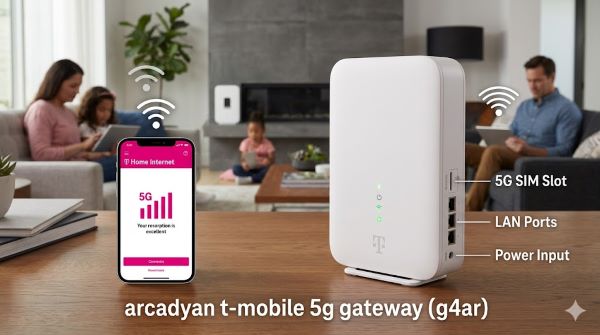
You received a new Arcadyan T-Mobile 5G Gateway (G4AR) for your T-Mobile home internet. It arrived in a box. Now what? You need to set it up but don’t know where to start.
The 5G router is your connection to T-Mobile home internet. Understanding how to configure it properly ensures you get the best speeds and coverage. The good news: setup is straightforward.
This guide covers everything from unboxing to troubleshooting your T-Mobile 5G Gateway. You’ll learn the features, how to optimize performance, and when to contact T-Mobile internet customer service.
Understanding Your 5G Home Internet Gateway
What The Arcadyan Gateway Is
The Arcadyan T-Mobile 5G Gateway (G4AR) is a 5G router that brings 5G home internet to your house. It’s the modem and router combined in one device.
Instead of using cable or fiber lines, this gateway uses T-Mobile’s 5G network. Your internet comes through the air wirelessly.
Think of it like a giant cell phone tower connection for your whole home. Every device in your house connects to this gateway for internet access.
How It Works Differently Than Other Routers
Traditional routers connect to modems that connect to cables or phone lines. This gateway does both jobs.
It also automatically finds the strongest 5G signal in your area. You don’t need to adjust anything. The gateway handles it.
The gateway supports both 5G and 4G LTE. If 5G isn’t available in your location, it falls back to 4G automatically.
Why You Got This Gateway
T-Mobile offers the G4AR gateway as part of their T-Mobile home internet plans. If you subscribed to 5G home internet T Mobile, this is your equipment.
T-Mobile chose this gateway because it’s reliable and easy to use. Most people get it working without calling support.
Getting Started: Initial Setup Steps
Step One: Unbox and Inspect:
Open the box and remove all components.
You should have:
- The Arcadyan gateway unit
- Power cable
- USB-C cable (optional, for setup)
- Documentation and setup guide
Check that nothing appears damaged. Damage before setup means contacting T-Mobile internet customer service immediately.
Step Two: Choose Your Location:
Place the gateway in a central location in your home. Higher placement like on a shelf works better than on the floor.
Avoid placing it in a closet or cabinet. The signal needs to reach throughout your home.
Keep it away from metal objects and other electronics. These can interfere with the signal.
Distance from walls helps too. A few inches away from walls improves performance.
Step Three: Plug In and Power On:
Connect the power cable to the gateway.
Plug the other end into a wall outlet.
The gateway powers on automatically. LED lights on top indicate status.
Wait one to two minutes for the device to fully boot. The lights will stabilize once ready.
Step Four: Connect Your First Device:
Open WiFi settings on your phone, laptop, or tablet.
Look for a network name that matches your gateway. The default name is typically on a sticker on the back.
Select that network and connect.
When prompted for a password, use the password from the sticker on the back.
Step Five: Sign In to Device Settings:
Open a web browser on your connected device.
Type 192.168.0.1 in the address bar.
You’re prompted to log in. Use the credentials on the sticker on the gateway.
You’re now in the device settings dashboard.
Configuring Your Gateway for Optimal Performance
Access the Admin Panel:
The admin panel is where you adjust settings. You access it through a browser.
Once logged in, you see various options for customization.
Don’t change settings unless you know what you’re doing. Default settings work for most users.
Changing Your WiFi Network Name:
In device settings, look for WiFi settings or network name options.
You can change the network name to something you prefer.
The network name is what appears in your WiFi list.
Give it a name you’ll recognize and that others can’t easily guess.
Updating Your WiFi Password:
In device settings, find the password change option.
Use a strong password with letters, numbers, and symbols.
Don’t use personal information that others might guess.
Write down your new password or store it in a password manager.
Checking Your Signal Strength:
The dashboard shows your current signal quality.
A strong signal shows green indicators. Weak signal shows yellow or red.
If signal is weak, try moving the gateway to a different location.
Higher placement and central location improve signal strength.
Viewing Connected Devices:
You can see all devices connected to your gateway in device settings.
This helps you identify if unauthorized devices are connected.
You can disconnect devices from here if needed.
Limit connections to devices you own and recognize.
How to Set Up a Router: Extending Your Network
Using a Mesh Network:
The gateway provides good coverage for most homes. Some larger homes need additional coverage.
Adding a best mesh network system extends coverage to dead zones.
A mesh system uses multiple devices that work together. One acts as the primary, others as nodes.
Install mesh nodes in areas with weak signal for complete coverage.
Connecting Additional WiFi Equipment:
You can add traditional WiFi routers to extend range.
Place them where signal is still decent but weak.
They boost the signal throughout weak areas.
Name your extended network the same as your main network. Devices switch between them seamlessly.
How to Set Up a Router Device Registration
Registering Your Gateway:
T-Mobile needs to know your gateway is activated for billing purposes.
The gateway registers automatically in most cases.
If registration fails, visit T-Mobile’s website or call T-Mobile internet customer service.
You might need your account number or phone number to register.
Setting Up the T-Mobile Internet App:
Download the T-Mobile internet app from your device’s app store.
Open it and log in with your T-Mobile credentials.
The app shows your data usage and network status.
From here you can access support and manage your account.
Performance: What to Expect
Typical Speeds:
In areas with strong 5G coverage, expect 100-300 Mbps.
Speeds vary based on network congestion and your location.
4G fallback typically provides 10-50 Mbps.
These speeds work well for streaming, gaming, and video calls.
Coverage Areas:
T-Mobile home internet is available in parts of the country.
Your location determines whether you get 5G, 4G, or a combination.
The gateway automatically uses the strongest available signal.
Latency and Gaming:
5G typically provides low latency, good for gaming.
Latency is the delay between sending and receiving data.
Lower latency means more responsive online gaming.
Most games work well on T-Mobile home internet.
Troubleshooting: Common Issues
No Signal or Weak Signal:
Move the gateway to a different location.
Place it higher and more centrally.
Remove obstructions between the gateway and windows.
Restart the gateway by unplugging and replugging it.
If problems persist, contact T-Mobile internet customer service.
Devices Won’t Connect:
Ensure you’re using the correct WiFi password.
Forget the network on your device and reconnect.
Restart your device.
Check if the WiFi is enabled in device settings. It might be accidentally disabled.
Slow Speeds:
Too many devices connected might slow speed.
Disconnect devices you’re not using.
Move your device closer to the gateway.
Restart the gateway to refresh the connection.
Check your data usage in the T-Mobile internet app. You might be hitting throttling limits.
Internet Drops Frequently:
Check if the gateway is in a location with good signal.
Restart the gateway.
Update the gateway firmware if available through device settings.
Contact T-Mobile internet customer service if drops continue. The issue might be network-wide.
Comparing 5G Home Internet T Mobile
5G vs 4G Performance:
5G provides faster speeds and lower latency.
4G still provides reliable internet but slower speeds.
T-Mobile automatically switches between them for best available service.
Advantages of T-Mobile Home Internet:
No cable or fiber lines required.
No long-term contracts in most cases.
Portable if you decide to move.
Simple setup compared to traditional internet.
Limitations:
Availability is limited to certain areas.
Speeds vary based on network congestion.
Data throttling might apply during peak times.
Performance depends on proximity to towers.
Contacting Support:
Using the T-Mobile Internet App:
The app has built-in support options.
You can access help articles and FAQs.
Live chat support is often available.
Calling T-Mobile Internet Customer Service:
Look up the T-Mobile internet customer service phone number on your bill or at T-Mobile’s website.
Have your account number ready.
Explain your issue clearly.
They can help troubleshoot or arrange equipment replacement.
T-Mobile Home Internet Login:
You can also log into your account at T-Mobile’s website.
From there, access account settings and support options.
Update your billing information and manage your service.
Optimization Tips for Better Performance
Network Management:
Check connected devices regularly. Remove devices you no longer need connected.
Limit bandwidth-heavy activities during peak times.
Update the gateway firmware when updates are available.
Monitor your speed regularly using speed test apps.
Coverage Optimization:
Position the gateway for maximum signal penetration.
Avoid placing it behind thick walls.
Keep it away from water and metal objects.
Use the 5GHz band for closer devices and 2.4GHz for range.
Security Best Practices:
Change your WiFi password regularly.
Use a strong password with mixed characters.
Enable any available security features in device settings.
Disable WPS (WiFi Protected Setup) if available.
Upgrade Paths:
When to Consider Upgrading:
If you consistently get slow speeds despite optimization, contact T-Mobile.
If your home needs expand beyond the gateway’s coverage, add mesh equipment.
If the device fails or becomes unreliable, contact T-Mobile internet customer service for replacement.
Adding Equipment Without Upgrading:
You don’t need to upgrade the gateway itself.
Add mesh systems or WiFi extenders to improve coverage.
These work alongside the gateway without replacing it.
Key Takeaways:
- Arcadyan T-Mobile 5G Gateway (G4AR) is your modem and router combined for T-Mobile home internet.
- 5G home internet T Mobile provides faster speeds than 4G but availability is limited to certain areas.
- 5G router setup is straightforward. Place it centrally, plug it in, and connect your devices.
- Device settings allow you to customize WiFi name, password, and manage connected devices.
- How to set up a router for T-Mobile internet means unboxing, powering on, and accessing the admin panel.
- Best mesh network systems extend coverage in large homes or homes with dead zones.
- T-Mobile internet app shows data usage and provides support options.
- T-Mobile internet customer service is available by phone or through the app if issues arise.
- 5G home internet speeds typically range from 100-300 Mbps in good signal areas.
- Troubleshooting slow speeds or connection drops starts with repositioning the gateway.
- Update gateway firmware when updates are available.
- Strong WiFi password protects your network from unauthorized access.
- Monitor connected devices to prevent bandwidth theft.
- T-Mobile home internet plans vary by location. Check availability for your address.
- The gateway automatically switches between 5G and 4G for best available service.
- Contact support if you can’t resolve issues yourself.