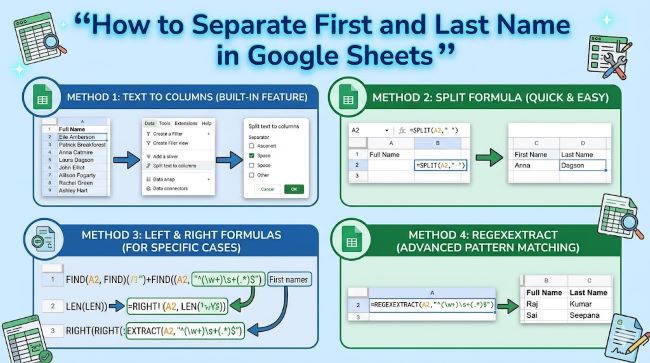
Your spreadsheet is full of names crammed into a single column, and you need them split. Whether you’re cleaning up a contact list, preparing data for a mail merge, or just trying to make a messy dataset usable, you’re not alone in this problem.
This guide walks you through the methods for separating first and last names in Google Sheets. We’ll cover formulas that actually work, plus some alternative approaches depending on what your data looks like.
Why You Need to Split Names
Before diving into the how, let’s talk about why this matters. A column full of “John Smith” entries works fine for display purposes. But when you need to filter by last name, sort by surname, or use names in different contexts, you’re stuck.
Most business applications need names split. Email systems use them separately. Mail merge templates need first names for personalization. Database imports demand separate fields. Once you know the technique, you can process hundreds or thousands of names in seconds.
The good news: Google Sheets makes this straightforward. You don’t need coding knowledge or complex workarounds.
Method 1: Using SPLIT Function (The Easiest Way)
If your names follow a simple pattern with a space separating first from last, the SPLIT function is your fastest option.
The syntax is clean:
=SPLIT(A2," ")Here’s what happens. You reference your cell containing the full name (A2), then specify what separates the parts (a space, in quotes). Google Sheets automatically creates new columns with the split results.
To apply this to multiple rows, click the cell with the formula and drag it down. Or select the range and use Ctrl+D (or Cmd+D on Mac) to fill down.
The SPLIT function creates as many columns as it needs. If you have middle names, they’ll spill into a third column. For simple first-last scenarios, you get exactly what you need.
One caveat: SPLIT doesn’t delete the original data. It just puts the split results in adjacent columns. You can delete the original names later if you want to clean up.
Method 2: LEFT and FIND Functions for First Names
Sometimes you need more control. The LEFT function combined with FIND lets you extract just the first name by finding where the space is and taking everything to its left.
The formula looks like this:
=LEFT(A2,FIND(" ",A2)-1)This tells Google Sheets to take characters from the left side of the text, starting at position 1, and stop one position before the space. The FIND function locates the space, and -1 removes the space itself.
It’s a bit longer than SPLIT, but it gives you precision. You can put this in column B, and it will extract only the first name.
Method 3: RIGHT and FIND Functions for Last Names
To get the last name, use a similar approach but in reverse:
=RIGHT(A2,LEN(A2)-FIND(" ",A2))This finds the space, counts how many characters are in the full name using LEN, then subtracts to find everything after the space. RIGHT grabs those characters from the right side of the text.
Put this formula in column C, and you have your last names isolated.
Method 4: MID Function for More Complex Separations
The MID function extracts text from the middle of a string. It’s useful when you need more flexibility or when your data has inconsistent spacing.
For a first name using MID:
=MID(A2,1,FIND(" ",A2)-1)For a last name using MID:
=MID(A2,FIND(" ",A2)+1,LEN(A2))These formulas do the same work as LEFT and RIGHT but offer different paths. Some people find MID more intuitive.
How to Separate Names in Excel (The Differences)
If you’re working in Microsoft Excel instead of Google Sheets, the concepts are identical but the execution differs slightly.
Excel’s Text to Columns feature is often faster. You select your column of names, go to Data menu, choose Text to Columns, select “Delimited,” choose space as the delimiter, and click Finish. Excel splits the names into adjacent columns instantly.
The SPLIT function doesn’t exist in Excel, so you’ll rely on LEFT, RIGHT, MID, and FIND instead. The formulas work exactly the same way. Just type them directly into cells.
In newer versions of Excel, you can use TEXTJOIN or CONCAT for the reverse operation if you need to merge names back together.
If you’re doing this in Excel, the Text to Columns feature beats formulas for speed on large datasets. For small lists or when you need to preserve the original names, formulas are more practical.
Handling Names with Suffixes or Titles
Your names might include “Jr.” or “Dr.” or “III”. These complicate splitting because they add extra words.
For simple cases with suffixes, you can modify your formula. If most names are “FirstName LastName Jr.”, you could use REGEX in Google Sheets.
Google Sheets supports REGEX functions that give you pattern-matching power:
=REGEX_EXTRACT(A2,"^(\w+) (.+?)(?:\s+(?:Jr|Sr|III|IV|II|Dr|Mr|Mrs|Ms|Prof)\.?)?$","capture_group")This gets complex fast. A practical workaround: use the simple SPLIT formula first, then manually clean the few edge cases. It’s faster than building a perfect formula for 5% of your data.
Text to Columns in Google Sheets
Google Sheets doesn’t have a Text to Columns feature like Excel does. The SPLIT formula is the direct equivalent.
If you want a manual approach, you can select a column, use Data menu, then “Split text to columns.” This opens a dialog where you specify the delimiter (space, comma, whatever you’re using). Google Sheets then splits the data for you without requiring a formula.
This is useful when you want to split once and move on, without keeping formulas in your spreadsheet.
Merging Names Back Together (The Reverse Process)
After you’ve split names into first and last columns, you might need to combine them again in a different format. Use CONCATENATE or CONCAT:
=CONCAT(B2," ",C2)This takes the first name from B2, adds a space, and adds the last name from C2. The result is a single cell with the full name.
For more complex combinations like “LastName, FirstName”, use:
=CONCAT(C2,", ",B2)This comes in handy for formal documents or when you’re preparing data for a new system.
Common Issues and How to Fix Them
Your data probably isn’t perfectly clean. Here are problems you might hit.
Extra spaces: Some names have two spaces between first and last names. Wrap your original cell reference in TRIM to remove extra spaces:
=SPLIT(TRIM(A2)," ")TRIM cleans up extra spaces before the split happens.
Names without spaces: Single names in your list break these formulas. Use IFERROR to handle that:
=IFERROR(LEFT(A2,FIND(" ",A2)-1),A2)If there’s no space to find, this returns the entire cell value instead of an error.
Mixed case requirements: Names might need specific formatting. Use PROPER to capitalize names correctly:
=PROPER(LEFT(A2,FIND(" ",A2)-1))PROPER converts text to title case automatically.
Accented characters: Names with accents or special characters usually work fine with these formulas. Test on a few examples to confirm.
Using Formulas vs. Manual Splitting
When should you use formulas versus the Text to Columns feature?
Use formulas when you need to preserve the original names, when you’ll repeat this task in the future, or when you want to keep the split data linked to the source. Formulas update automatically if the source data changes.
Use Text to Columns when you’re doing a one-time split and want something quick. It’s genuinely faster for this specific job.
Most people use formulas because they’re safer. You keep the original data, and you can modify your approach if needed.
Cleaning Up After Splitting
Once you’ve split your names, you might want to delete the original column. Make sure you convert formulas to values first.
Select the columns with formulas, copy them, then use Paste Special and choose Values Only. This converts the formula results to plain text. Now you can delete the original name column without breaking anything.
To do this in Google Sheets: right-click the selected cells, choose Paste Special, then Paste Values Only.
Example Workflow
Let’s walk through a real scenario. You have a spreadsheet with 500 contact names in column A. You need them split for a mail merge.
- Click cell B1 and type =SPLIT(A2,” “)
- Press Enter. Google Sheets splits the name into columns B and C.
- Select cell B1, copy the formula down to row 500 using the fill handle or Ctrl+D.
- All 500 names are now split.
- Copy columns B and C, paste as values to preserve them.
- Delete column A (the original names) or keep it for reference.
- Rename your new columns to “First Name” and “Last Name” for clarity.
This takes maybe 2 minutes.
Why This Matters for Data Management
Splitting names properly is foundation-level data hygiene. It affects reporting, communication, and system integration. A spreadsheet where names are properly separated lets you do things a messy one doesn’t: proper sorting, targeted communication, clean exports.
Most data problems trace back to skipping this step. Take the few minutes to do it right when you set up your spreadsheet.
Bottom Line
Whether you’re using Google Sheets or Excel, the principle is the same. Pick a method that fits your data and stick with it. SPLIT is fastest for simple cases. LEFT/RIGHT formulas give you precision when you need it. Text to Columns handles one-time jobs quickly.
Your names don’t need to be stuck together. A few clicks and a simple formula separate them cleanly.