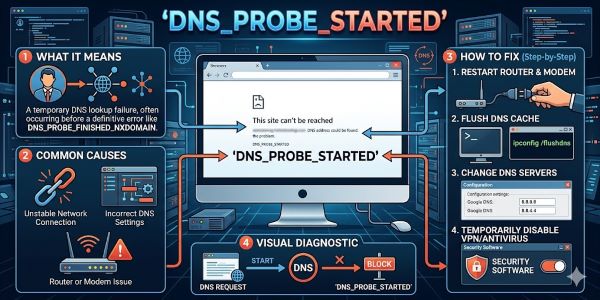
You try to load a website. The page hangs. Your browser displays an error message: dns_probe_started. The page won’t load. Your internet seems fine, but the site doesn’t connect.
This error confuses most users because it’s technical and doesn’t explain what actually went wrong. But understanding dns_probe_started meaning helps you fix it. Most of the time, you can resolve this without calling your ISP or waiting for technical support.
This guide explains what what is a dns probe, why dns_probe_started appears, and concrete steps to get your connection working again.
Understanding DNS and DNS Probes
What DNS Actually Is
DNS stands for Domain Name System. It’s the internet’s address book. When you type a website address like google.com, DNS translates that name into an IP address like 142.250.185.46. Your browser uses the IP address to connect to the website.
Without DNS, you’d need to memorize every IP address for every website you want to visit. DNS makes the internet usable by converting human-readable names into computer-readable addresses.
What a DNS Probe Does
A dns probe is your browser checking whether DNS is working. When you try to visit a website, your browser sends out a probe. It asks: “Can you look up this domain name and give me the IP address?”
If DNS works, the probe completes quickly and you see the website. If DNS doesn’t work, the probe fails. Your browser displays an error message.
Dns_probe_started means your browser began the DNS probe. It’s the first step in looking up a domain name.
Why You See This Error
Dns_probe_started typically appears when the probe gets stuck or fails. It means your browser started the process but couldn’t complete it.
The error usually indicates one of these problems:
- Your DNS server isn’t responding
- Your internet connection is unstable
- Your router isn’t configured correctly
- Your ISP’s DNS is down
- Network software is interfering
The exact cause varies, but the solution process is similar for all causes.
Understanding DNS Probe Started Meaning
Breaking Down the Error Message
When your browser shows dns_probe_started, it’s telling you that the DNS lookup process started but didn’t finish successfully.
Think of it like mail being sent to an address. The mailman picks up the letter (DNS probe started) but can’t deliver it because something is wrong with the address or the route.
What does dns probe started mean for your connection? It means your browser can’t resolve the domain name to an IP address. Without that translation, the browser can’t connect to the website.
Different DNS Probe Messages
Dns_probe_finished_no_internet is slightly different. It means the probe completed, but DNS determined you don’t have internet access.
Dns_probe_started alone suggests the probe is still trying or got stuck trying.
The distinction matters for troubleshooting. Different messages point to different problems.
Common Causes of DNS Probe Errors
Your DNS Server Isn’t Responding
Your Internet Service Provider provides DNS servers. These servers translate domain names to IP addresses.
If your ISP’s DNS servers go down or stop responding, DNS probes fail. Your browser can’t reach the DNS servers to look up website addresses.
This is one of the most common causes. When it happens, you see dns_probe_started or related errors.
Your Router Is Misconfigured
Your router sits between your device and the internet. It’s responsible for routing traffic including DNS requests.
If your router’s DNS settings are wrong, DNS requests don’t reach proper servers. They get lost or go to the wrong place.
Misconfigured routers sometimes point to non-existent DNS servers. Requests go nowhere. Probes fail.
Your Internet Connection Is Unstable
Shaky connections sometimes interrupt DNS probes before they complete.
If your connection drops or becomes unreliable, probes start but can’t finish. You see dns_probe_started error messages.
Unstable connections are common with WiFi, especially far from your router or near interference sources.
Your ISP’s DNS Is Down
Occasionally, an ISP’s DNS servers experience outages. During these periods, all customers using that ISP’s DNS can’t resolve domain names.
This causes dns probe started no internet errors for many users simultaneously. The ISP’s status page shows DNS outages.
Network Software Is Interfering
Antivirus programs, firewalls, and VPNs sometimes interfere with DNS. They might block DNS requests or route them incorrectly.
Browser extensions sometimes cause issues too. They intercept network traffic and sometimes break DNS lookups.
Troubleshooting DNS Probe Started Errors
Step One: Restart Your Router
Most network problems resolve with a router restart. Routers accumulate temporary issues that a restart clears.
Unplug your router. Wait 30 seconds. Plug it back in.
Wait for it to fully boot. This usually takes a minute or two. You know it’s ready when lights stabilize.
Try accessing a website. The dns_probe_started error might be gone.
This simple step works often enough that it should be your first attempt.
Step Two: Check Your Internet Connection
Make sure you have internet access. The error might not be about DNS at all.
Try accessing websites on other devices. Use your phone or tablet on the same WiFi.
If other devices can’t access websites either, your internet is down. Contact your ISP.
If other devices work fine, the problem is specific to your computer.
Step Three: Restart Your Computer
Restart your device completely. Shut down, wait 30 seconds, power back on.
A restart clears temporary software issues that sometimes cause DNS problems.
Try accessing websites after restarting.
Step Four: Clear Your DNS Cache
Your computer caches DNS lookups. Sometimes cached data becomes corrupted or outdated.
On Windows, open Command Prompt as Administrator and type: ipconfig /flushdns
On Mac, open Terminal and type: sudo dscacheutil -flushcache
Press Enter and provide your password if prompted.
Try accessing websites again. A fresh DNS cache sometimes resolves what is dns probe errors.
Step Five: Try a Different DNS Server
Your ISP’s DNS might be having issues. Try a public DNS service instead.
Google’s public DNS: 8.8.8.8 and 8.8.4.4
Cloudflare’s public DNS: 1.1.1.1 and 1.0.0.1
Quad9’s public DNS: 9.9.9.9 and 149.112.112.112
To change your DNS on Windows:
Go to Settings > Network and Internet > Change adapter options.
Right-click your internet connection and select Properties.
Select Internet Protocol Version 4 and click Properties.
Click Use the following DNS server addresses.
Enter your chosen public DNS server addresses.
Click OK and try browsing.
Step Six: Disable VPN and Proxy
VPNs and proxies sometimes interfere with DNS. Temporarily disable them to test.
If your browser has a VPN enabled, turn it off.
Check if your system has a proxy configured. Go to Settings and search for “proxy”.
Disable any proxy settings.
Try accessing websites. If they work with VPN disabled, your VPN is the problem.
Step Seven: Disable Browser Extensions
Browser extensions sometimes break DNS. Temporarily disable all of them.
On Chrome: Click the puzzle icon in the top right > Manage extensions > Toggle off all extensions.
On Firefox: Click the menu button > Add-ons > Extensions > Toggle off all extensions.
Try accessing websites. If they work, an extension is the culprit.
Re-enable extensions one by one to identify the problematic one.
Step Eight: Try a Different Browser
Test whether the problem is browser-specific.
Try accessing the same website in a different browser. Use Edge if you’ve been using Chrome, or Safari if you’ve been using Firefox.
If it works in the other browser, your original browser has an issue.
Clearing cache and cookies in your original browser sometimes fixes this.
Step Nine: Check Your Firewall Settings
Firewalls sometimes block DNS. Temporarily disable your firewall to test.
On Windows: Go to Settings > Privacy & Security > Windows Defender Firewall.
Click Allow an app through firewall.
Make sure your browser is allowed.
On Mac: Go to System Preferences > Security & Privacy > Firewall.
Click Firewall Options and check that DNS traffic is allowed.
Advanced Troubleshooting
Using Command Line Tools
Open Command Prompt or Terminal.
Type: nslookup google.com
This sends a DNS probe directly. It tells you whether DNS is working.
If it returns an IP address, DNS is working. The error might be something else.
If it shows an error, DNS is definitely the problem.
Testing DNS from Different Networks
If you have mobile data, disable WiFi and try accessing websites on cellular.
If cellular works but WiFi doesn’t, your WiFi router or connection is the problem.
Go to a coffee shop or library and test on their WiFi. If it works elsewhere, your home network is the issue.
If the error persists everywhere, your ISP or DNS has broader issues.
Checking ISP Status
Visit your ISP’s status page or website. Look for DNS outage notifications.
If your ISP has DNS issues, they’re working on it. You might need to wait or contact them.
Some ISPs provide status on their mobile apps. Check there if you can’t access their website.
Understanding NS_ERROR_UNKNOWN_HOST
Related Error Message
ns_error_unknown_host is similar to dns_probe_started but specifically means the browser couldn’t resolve the hostname to an IP address.
It usually indicates the same DNS problems. Troubleshooting is identical.
The difference is ns_error_unknown_host means the DNS lookup completed but failed. Dns_probe_started suggests it’s still trying.
Preventing Future DNS Probe Errors
Best Practices
Use reliable DNS servers. Google and Cloudflare public DNS are typically more stable than some ISPs.
Keep your router firmware updated. Updates fix bugs and stability issues.
Maintain good WiFi signal if using WiFi. Move closer to your router or switch to wired connection.
Keep your antivirus and security software updated. Updates fix issues that interfere with DNS.
Avoid using questionable VPN services. Cheap or unknown VPNs sometimes break DNS intentionally or accidentally.
Monitor your internet connection. If it’s frequently unstable, contact your ISP.
Creating Backup Solutions
Consider using a public DNS service as your primary. If your ISP’s DNS goes down, you have alternatives.
Set up your router to use public DNS. This makes the change automatic for all devices.
Have mobile data available. When your home internet has issues, you can still access important information.
Key Takeaways
- Dns_probe_started means your browser began a DNS lookup but couldn’t complete it.
- What is a dns probe is your browser asking a DNS server to translate a domain name to an IP address.
- What does dns probe started mean indicates a problem with DNS resolution, usually involving your DNS server, router, or connection.
- Dns probe started meaning signals that DNS lookup failed at the very beginning.
- Dns_probe_finished_no_internet is slightly different, meaning the probe completed but couldn’t access the internet.
- What is dns probe in practical terms is an automatic process your browser runs constantly when you visit websites.
- Dns probe error usually results from DNS server unavailability, misconfigured routers, or unstable connections.
- Dns probe started no internet suggests your DNS can’t work because you lack internet access.
- Dns probe no internet means the probe recognizes you don’t have connectivity.
- Dns_probe_started meaning specifically points to the probe being stuck at the startup phase.
- Dns_probe is the mechanism browsers use to translate website names to addresses.
- Dns probe started error requires troubleshooting your router, DNS settings, and connection.
- Ns_error_unknown_host is related but means the lookup completed unsuccessfully.
- Restart your router first. This fixes most DNS probe issues.
- Clear your DNS cache on your computer. Corrupted cache sometimes causes problems.
- Try public DNS servers like Google (8.8.8.8) or Cloudflare (1.1.1.1).
- Test on other devices and networks to isolate whether the problem is device-specific or network-wide.
- Disable VPN and extensions temporarily to rule out software interference.