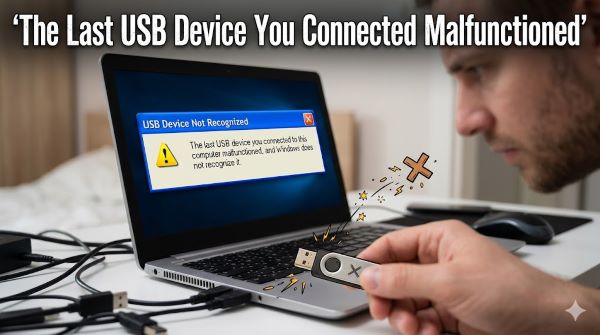
You plug something in and Windows immediately throws up a notification in the system tray: “The last USB device you connected malfunctioned, and Windows does not recognize it.” Sometimes the device still shows up but does not work. Sometimes nothing happens at all. And sometimes the error keeps popping up on its own even when you have not touched anything. The message “the last usb device you connected malfunctioned” is one of those Windows errors that can mean several different things, which is why a single fix does not always work. This guide walks through every cause and every solution, in order from fastest to try to most involved, so you can stop wasting time on fixes that do not apply to your situation.
Start Here: Rule Out the Obvious
Before touching drivers or registry settings, check the basics. These steps take two minutes and eliminate the most common causes.
Try a different USB port USB ports fail. A single dead or failing port produces this exact error on every device you plug into it, making the problem look like a driver or device issue when it is just a bad port. Plug your device into a different port on the same machine. If it works there, the original port is your problem.
Try the device on a different computer If the same device fails on a different computer, the device itself is faulty or physically damaged. No driver fix or Windows setting will resolve a hardware failure in the device. Replace or repair the device.
Try a different cable or adapter USB cables fail more often than people expect, particularly at the connector end where flex stress accumulates. If you are using a hub or adapter, bypass it and connect directly to the computer. Hubs add a layer of complexity and power distribution that can cause recognition failures, especially with power-hungry devices.
Restart the computer with the device unplugged Restart Windows with the USB device disconnected. Once Windows has fully loaded, plug the device in. A clean connection after a fresh boot clears many temporary driver state errors.
If any of these steps resolve the problem, you are done. If not, move to the systematic fixes below.
Fix 1: Unplug and Reconnect All USB Devices
When “usb device not recognized” keeps popping up repeatedly without a new device being connected, Windows has often gotten stuck in a loop with a device that disconnected uncleanly.
- Unplug every USB device from the computer: mouse, keyboard, drives, hubs, everything.
- Shut down the computer completely (not restart, full shutdown).
- Unplug the computer’s power cable for 30 seconds. For laptops, remove the battery if it is removable.
- Reconnect power and boot up.
- Plug devices back in one at a time, waiting a few seconds between each.
The power drain clears the USB controller’s cached state, which sometimes holds onto ghost device connections that generate the error on loop.
Fix 2: Update or Reinstall USB Drivers
Outdated or corrupted USB drivers are a primary cause of usb device not recognized errors on both Windows 10 and Windows 11. How to update USB drivers:
Through Device Manager:
- Right-click the Start button and select Device Manager.
- Expand the Universal Serial Bus controllers section.
- Look for any device with a yellow warning triangle. This is the device Windows cannot recognize.
- Right-click the flagged device and select Update driver.
- Choose Search automatically for drivers. Windows searches for updated drivers online.
- If Windows says the driver is up to date but the problem persists, right-click the same device and select Uninstall device.
- Check the box for “Delete the driver software for this device” if it appears.
- Restart the computer. Windows reinstalls the driver fresh on boot.
For the USB controller itself:
Still in Device Manager under Universal Serial Bus controllers, right-click each USB Root Hub entry and select Update driver. Do this for all Root Hub entries in the list. Then restart.
Through Windows Update:
Go to Settings > Windows Update > Advanced options > Optional updates. Check for driver updates listed here. Manufacturer-provided USB controller drivers sometimes appear as optional updates before they roll out automatically.
Fix 3: Fix the “Unknown USB Device (Port Reset Failed)” Error
If Device Manager shows a device listed as Unknown USB Device (Port Reset Failed), this is a specific error with its own fix path. Port reset failed means the USB controller attempted to initialize the device and the reset sequence did not complete.
- Open Device Manager.
- Expand Universal Serial Bus controllers.
- Right-click Unknown USB Device (Port Reset Failed) and select Uninstall device.
- After uninstalling, go to the Action menu in Device Manager and select Scan for hardware changes.
- Windows re-detects the USB controller and reinstalls the driver.
- Reconnect the USB device.
If Port Reset Failed returns after this, the issue is often with USB power management. Move to Fix 4.
Fix 4: Disable USB Selective Suspend
USB Selective Suspend is a Windows power-saving feature that cuts power to USB ports when they are idle. On some systems it causes ports to not wake back up correctly, producing usb not working errors that look like driver problems.
To disable it:
- Open the Control Panel and go to Power Options.
- Click Change plan settings next to your active power plan.
- Click Change advanced power settings.
- Expand USB settings in the list.
- Expand USB selective suspend setting.
- Set it to Disabled for both On battery and Plugged in.
- Click Apply and OK.
- Restart the computer.
On Windows 11, you can also find this through Settings > System > Power and Sleep > Additional power settings, then follow the same path through Change plan settings.
Fix 5: Disable USB Power Management in Device Manager
Even with Selective Suspend disabled at the power plan level, Windows can still cut power to USB Root Hubs through a separate Device Manager setting.
- Open Device Manager.
- Expand Universal Serial Bus controllers.
- Right-click the first USB Root Hub and select Properties.
- Click the Power Management tab.
- Uncheck Allow the computer to turn off this device to save power.
- Click OK.
- Repeat for every USB Root Hub in the list.
- Restart.
This is one of the most effective fixes for the error “usb device not recognized keeps popping up” on and off throughout a Windows session, because the power management setting is cutting power mid-session and failing to restore it cleanly.
Fix 6: Run the Windows USB Troubleshooter
Windows includes a built-in troubleshooter for hardware and device problems that can automatically fix some USB recognition errors.
On Windows 10: Go to Settings > Update and Security > Troubleshoot > Additional troubleshooters > Hardware and Devices. Run the troubleshooter and apply any fixes it recommends.
On Windows 11: Go to Settings > System > Troubleshoot > Other troubleshooters. Find Hardware and Devices and click Run.
The troubleshooter will not fix everything, but it handles some driver and power state issues automatically and tells you when the problem is beyond its scope, which itself narrows down the cause.
Fix 7: Check for Windows Updates
A specific Windows Update may address USB controller compatibility problems, particularly on newer hardware. The usb device not recognized Windows 11 error in particular has seen several patches related to USB 3.0 and USB 4 controller behavior since Windows 11 launched.
Go to Settings > Windows Update and check for updates. Install all available updates and restart. This is especially relevant if the problem started after a major Windows feature update, since those occasionally introduce regressions in USB controller drivers.
Fix 8: Update Motherboard and Chipset Drivers
USB ports connect through the motherboard’s chipset. If the chipset drivers are outdated, USB controller behavior can be unstable even when the Windows-level USB drivers are current.
Find your motherboard manufacturer (check the sticker on the motherboard itself, or look in the System Information tool under System > Baseboard Manufacturer). Go to that manufacturer’s support website, enter your motherboard model, and download the latest chipset driver package.
Common sources:
- Intel chipsets: Intel’s support website (intel.com/content/www/us/en/support)
- AMD chipsets: AMD’s support page (amd.com/en/support)
- Motherboard manufacturers: ASUS, MSI, Gigabyte, and ASRock all maintain driver download pages for each motherboard model
Install the chipset drivers and restart. This fix is particularly relevant for usb ports not working on systems that were recently built or recently reinstalled Windows.
Fix 9: Check USB Power Delivery for Power-Hungry Devices
External hard drives, high-powered USB hubs, and some devices draw more power than a standard USB port supplies. When the device draws more than the port can deliver, Windows throws the malfunction error rather than underpowering the device silently.
Signs this is your specific problem:
- The error only happens with one specific device
- The device works on a powered USB hub but not directly from the computer
- The device works on a desktop’s rear USB ports but not the front panel ports (front panel ports on many desktops share a lower-power USB header)
Solutions:
- Use a powered USB hub (one with its own AC power supply, not a bus-powered hub)
- Use the rear USB ports on a desktop rather than front panel ports
- For external drives, use a Y-cable that draws from two USB ports simultaneously
- For laptops, plug into a USB-C port with Power Delivery if available, using an appropriate cable or adapter
Fix 10: Check for Physical Port Damage
When usb port not working persists after every software fix, physical damage to the port is the remaining explanation. USB-A ports in particular have a plastic tongue inside that breaks or bends with heavy use or forced connections.
Shine a light into the port and check:
- Is the plastic tongue in the center straight or bent?
- Are any of the metal contacts inside the port bent or missing?
- Is there debris (dust, lint) blocking the port?
Compressed air clears dust and lint. Bent contacts on the port sometimes bend back into position with careful non-conductive tool work, but this risks further damage. A physically damaged port on a laptop usually requires a repair visit or USB port replacement. On a desktop, a PCIe USB expansion card adds working ports without needing motherboard repair.
When “Computer Not Recognizing USB” Is a BIOS Issue
On some systems, particularly after BIOS updates, USB controller settings reset to defaults that disable USB 3.0 or USB 4 ports, leaving only USB 2.0 active. The device connects but gets misidentified or fails to initialize at the higher speed standard.
Enter your BIOS setup (usually by pressing Delete, F2, or F12 at startup, depending on the motherboard manufacturer) and check:
- USB configuration settings: verify USB 3.0, USB 3.1, or USB 4 are enabled
- XHCI hand-off: this should be enabled on most systems to allow proper USB 3.0 initialization
- Legacy USB support: enabling this can help with devices that fail to initialize before Windows loads
Save BIOS settings and restart.
Key Takeaways
- “The last USB device you connected malfunctioned” means Windows encountered a device it could not initialize. The cause can be the device, the cable, the port, a driver, a power setting, or a BIOS configuration.
- Always start with physical checks: try a different port, try a different cable, test the device on another computer. These steps eliminate hardware causes before you touch any software setting.
- USB device not recognized on Windows 10 and Windows 11 most often responds to driver reinstallation (Device Manager > Universal Serial Bus controllers > Uninstall device > restart) or disabling USB power management settings.
- Unknown USB device port reset failed in Device Manager is a specific error: uninstall the device entry, scan for hardware changes, then reconnect.
- USB device not recognized keeps popping up on its own usually points to USB Selective Suspend or USB Root Hub power management settings cutting power incorrectly. Disabling both fixes this in most cases.
- USB ports not working after software fixes usually points to chipset driver issues or physical port damage. Update chipset drivers from the motherboard manufacturer’s site before concluding the port is physically faulty.
- Power-hungry devices (external hard drives, powered accessories) need a powered USB hub or a port capable of adequate power delivery. Bus-powered hubs and front panel USB ports often cannot deliver enough power.
- If all software fixes fail, check BIOS USB settings, particularly XHCI hand-off and USB 3.0/USB 4 enablement, after a BIOS update.