You’re about to print a document using both sides of the paper, and your printer asks: Print on long edge or short edge? You pause. Which one is correct? You don’t want to waste paper with a wrong choice, but the terminology confuses you. Both options sound technical and important, but you have no idea what the difference actually is.
This confusion stops here. Understanding whether to print on long edge or short edge is straightforward once you know what these terms mean. The choice affects how the pages of your document flip and whether the printed text reads properly on both sides. Choosing the correct option ensures professional-looking results. Choosing wrong means pages print upside down and your document becomes unreadable. Let’s clarify long edge vs short edge and explain what does flip on long edge mean so you can print with confidence.
Understanding Duplex Printing and Double-Sided Printing
Before we dive into flip on long edge vs short edge, you need to understand duplex printing meaning. Duplex printing is the technical term for double-sided printing. It means your printer prints on both sides of a sheet of paper instead of just one side.
Duplex printing saves paper, reduces environmental waste, and makes documents thicker and more substantial. Many modern printers support automatic duplex printing, where the device handles flipping pages internally. Others require manual flipping where you reinserting pages into the printer tray.
When your printer is ready to print the second side, it faces a choice about which direction to flip the paper. This is where flip on long edge and flip on short edge become relevant. The flip direction determines whether the back page aligns correctly with the front page or prints upside down.
What Are Long Edge and Short Edge
To understand print on both sides flip on long edge versus short edge, you need to visualize a piece of paper. A standard sheet of paper has four edges: two long edges and two short edges.
In portrait orientation, which is the standard vertical layout:
Long edges are the left and right sides of the page. These are the longer dimension of the paper.
Short edges are the top and bottom of the page. These are the shorter dimension.
In landscape orientation, which is horizontal:
Long edges become the top and bottom of the page.
Short edges become the left and right sides.
Knowing these distinctions is essential because the flip setting tells your printer which edge to use as the hinge when rotating the paper for double-sided printing.
Flip on Long Edge Explained
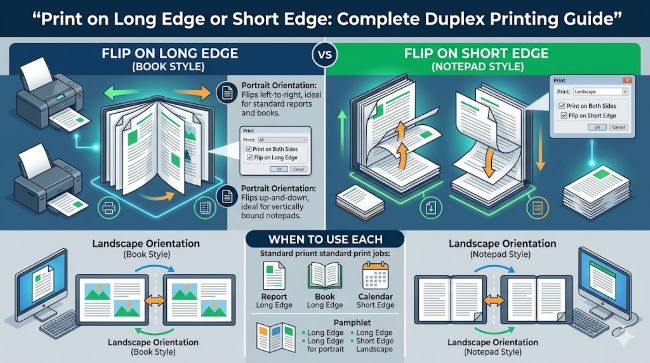
Flip on long edge means the paper flips along its longer side during duplex printing. Think of it like opening a book. When you turn a book page, you flip it along the spine, which runs vertically. The page rotates left to right, and the top and bottom stay oriented the same way.
When you select flip on long edge, your printer treats the long edge of the paper like a book spine. It prints the first side, then rotates the paper along that long edge to print the back. The result is that both sides read normally when you flip through the pages like a book.
What does flip on long edge mean in practical terms? Your document reads left-to-right on both sides. When you turn the page horizontally, the back side aligns with the front side properly. Nothing prints upside down or backwards.
This setting is ideal for:
Portrait-oriented documents like reports, letters, and essays that read vertically. Booklets and manuals that will be bound along the spine. Documents that will be read sequentially like a book. Educational materials where students flip pages naturally.
Flip on Short Edge Explained
Flip on short edge means the paper flips along its shorter side. Instead of rotating left to right like opening a book, the paper flips up and down. Imagine a calendar where you flip pages vertically, not horizontally.
When you select flip on short edge, your printer rotates the paper along the short edge. The back side prints upside down relative to how you’d normally hold the paper, but when you flip it vertically, it reads correctly.
This setting is ideal for:
Landscape-oriented documents like spreadsheets and charts that read horizontally. Calendars and planners that flip up and down. Tri-fold brochures with specific layouts requiring vertical flipping.
When to Use Each Setting
The decision between flip on long edge vs short edge depends primarily on your document orientation.
For portrait documents (vertical layout), use flip on long edge. Standard letters, essays, reports, and most office documents are portrait. They’re taller than they are wide. Flipping on the long edge maintains natural left-to-right reading.
For landscape documents (horizontal layout), use flip on short edge. Wide tables, spreadsheets, and panoramic images are landscape. They’re wider than they are tall. Flipping on the short edge prevents text from printing upside down.
When in doubt, ask: How would I naturally read this document? If you’d turn it like a book (left to right), use long edge. If you’d turn it like a calendar (up and down), use short edge.
Where to Find Duplex Settings
Different programs place duplex printing settings in different locations. Here’s where to look in common applications:
Microsoft Word: Go to File > Print. Look for “Print on Both Sides” or “Two-Sided Printing.” Click the dropdown to choose your flip option.
Adobe Acrobat: Go to File > Print. Look for “Print on Both Sides of Paper.” A submenu appears with flip options.
Google Docs: Go to File > Print. Click “More Settings.” Find the “Print on Both Sides” option and select your flip preference.
Mac Applications: The duplex option usually appears in the print dialog under a section labeled “Layout” or “Two-Sided Printing.”
Check your print preview before confirming. Most applications show how your document will look when printed double-sided. This catches mistakes before wasting paper.
Common Printing Mistakes and How to Avoid Them
Wrong flip option selected: This is the most common mistake. Pages print upside down on one side, making the document impossible to read. Solution: Always check your document orientation before selecting the flip option. Use print preview to verify settings.
Changing orientation without adjusting settings: You change your document from portrait to landscape but forget to update the flip setting. The pages print misaligned. Solution: Whenever you change document orientation, review duplex settings.
Different settings in different applications: You set duplex to long edge in Word, but your PDF reader uses a different default. You get inconsistent results. Solution: Set duplex preferences in your printer’s control panel as the system default.
Forgetting print preview: You assume your settings are correct and start printing. Paper wastes before you notice the problem. Solution: Always use print preview. Most applications show exactly how double-sided pages will look.
Purdue Printing Standards and Guidelines
Purdue printing standards, used by many universities and organizations, recommend specific settings. According to Purdue IT Learning Spaces:
For portrait orientation documents, use Print on Both Sides with Flip pages on long edge selected.
For landscape orientation documents, choose Print on Both Sides with Flip pages on short edge selected.
These standards exist because they ensure the most readable, professional-looking output. Following them prevents upside-down pages and improper alignment.
Printer Terminology Variations
Different printers use different terminology. Some say flip on long edge. Others say bind on left or flip over. Some say flip on short edge. Others say flip up.
These variations mean the same things:
Flip on long edge = Flip over = Bind on left/right Flip on short edge = Flip up = Bind on top/bottom
Check your specific printer’s documentation to understand its terminology. The principle remains the same regardless of the words used.
Key Takeaways
- Duplex printing means double-sided printing. It prints both sides of a sheet of paper and saves paper while reducing waste.
- Print on long edge or short edge determines which direction the paper flips during duplex printing. Long edge flips rotate the paper left-to-right like opening a book. Short edge flips rotate the paper up-and-down like a calendar.
- What does flip on long edge mean: The paper flips along its longer side, keeping top and bottom oriented the same way. This is ideal for portrait-oriented documents read like books.
- Flip on short edge means the paper flips along its shorter side, rotating the document vertically. This works best for landscape-oriented documents and calendars.
- Long edge vs short edge choice depends on document orientation. Portrait documents need long edge. Landscape documents need short edge.
- Print on both sides flip on long edge is the standard for reports, manuals, and letters. This keeps pages aligned when reading sequentially.
- Always use print preview before printing double-sided documents. This catches setting errors and prevents wasted paper.
- Different printers use different terminology. Flip on long edge might be called bind on left, and flip on short edge might be called flip up. Check your printer’s documentation for specific terms.