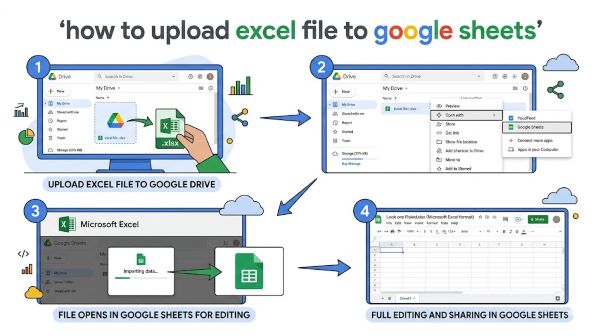
Most people run into the same situation: someone sends you an .xlsx file, you work in Google Sheets, and you need to get that data into the browser without losing your formulas, formatting, or pivot tables. Or you have years of Excel workbooks you want to move to Google Drive so your team can collaborate on them in real time. Knowing how to upload excel file to google sheets properly, not just drag and drop and hope, saves you from broken formulas, missing formatting, and wasted time fixing things after the fact. This guide covers every method that works, what each one does to your file, and what to look at once the upload finishes.
What Happens When You Upload Excel to Google Sheets
Before getting into the steps, it is worth understanding what the upload process actually does. Google Sheets and Microsoft Excel use different file formats. Excel files use .xlsx (or the older .xls). Google Sheets uses a proprietary Google format stored in Google Drive.
When you upload an Excel file to Google Sheets, one of two things happens:
- The file stays as .xlsx and Google Drive displays it using a built-in viewer. You can open it, but it is still technically an Excel file stored in Google Drive.
- The file converts to Google Sheets format (.gsheet). The data, formulas, and formatting transfer into a native Google Sheets file.
These two outcomes are different. Staying as .xlsx preserves the exact file but limits some Google Sheets collaboration features. Converting to Google Sheets format gives you full Sheets functionality but may alter some Excel-specific features that Sheets does not support.
Most people want the conversion, so the methods below focus on getting a proper Google Sheets file out of your Excel upload.
Method 1: Upload via Google Drive and Convert
This is the most reliable method for a clean conversion.
Step 1: Open Google Drive Go to drive.google.com and sign in to your Google account.
Step 2: Upload the Excel file Click the + New button in the top left corner. Select File upload from the dropdown. Navigate to your Excel file on your computer and select it. The file uploads to Google Drive as an .xlsx file.
Step 3: Open the file Once uploaded, double-click the file in Google Drive. It opens in a Google Sheets viewer, but it is still stored as .xlsx at this point.
Step 4: Save as Google Sheets In the menu bar, go to File > Save as Google Sheets. Google creates a new copy of the file in native Google Sheets format. The original .xlsx file stays in your Drive alongside the new Sheets version.
What you get: A native Google Sheets file with your data, most formulas, and formatting converted. The .xlsx original remains in Drive as a backup.
Tip: If you want Google Drive to convert Excel files automatically every time you upload one, go to Google Drive Settings (the gear icon) > Settings > check “Convert uploads to Google Docs editor format.” From that point forward, every Excel file you drag into Drive converts on the way in.
Method 2: Import Directly Inside Google Sheets
If you are already working in Google Sheets and want to bring in Excel data, the import function handles it without leaving the browser.
Step 1: Open a Google Sheets file Open an existing Google Sheets file or create a new blank one at sheets.google.com.
Step 2: Go to File > Import In the menu bar, click File, then Import. A dialog box opens.
Step 3: Upload your Excel file In the Import file dialog, click the Upload tab. Either drag your Excel file into the box or click Select a file from your device. The file uploads.
Step 4: Choose your import options Once uploaded, Google Sheets gives you import options:
- Create new spreadsheet: Opens the Excel data as a brand new Sheets file.
- Insert new sheet(s): Adds the Excel data as new tabs in your current spreadsheet.
- Replace spreadsheet: Overwrites the current file with the Excel data.
- Replace current sheet: Replaces only the active tab.
- Append rows to current sheet: Adds the Excel data below existing data in the current tab.
Select the option that fits your situation and click Import data.
What you get: The Excel data lands in Google Sheets in the format you chose. This method is useful when you want to merge Excel data into an existing Sheets file rather than creating a standalone conversion.
Method 3: Open Excel Files Directly with Google Sheets
Google Drive lets you set Google Sheets as the default app for opening Excel files. This is the fastest method if you regularly work with Excel files in Google Drive.
Step 1: Upload the Excel file to Google Drive Drag the .xlsx file into Google Drive or use the + New > File upload method.
Step 2: Right-click the file Right-click on the uploaded Excel file in Drive. Select Open with > Google Sheets.
The file opens in Google Sheets as if it were a native Sheets file. However, the file is still stored as .xlsx in Drive. Edits you make save back to the .xlsx format, which can cause formatting differences if you share it with Excel users.
To make it a true Google Sheets file: While viewing it in Sheets, go to File > Save as Google Sheets. This creates a converted copy.
Method 4: Drag and Drop into Google Drive with Auto-Conversion
If you turned on auto-conversion in Drive settings (covered in Method 1), dragging an Excel file directly into the Google Drive browser window converts it automatically.
Step 1: Turn on auto-conversion In Google Drive, click the Settings gear > Settings > check “Convert uploads to Google Docs editor format” > Done.
Step 2: Drag the file Drag your .xlsx file from your desktop or file explorer directly into the Google Drive browser window.
Google Drive uploads and converts it in one step. The file appears in Drive as a Google Sheets file (.gsheet), not as an .xlsx. No extra steps needed.
Note: Auto-conversion works for new uploads. Files already in Drive as .xlsx do not retroactively convert unless you manually do it.
What Gets Preserved and What Does Not
After uploading, check these elements in your converted Google Sheets file:
Usually Preserved
- Data and values: All cell data transfers cleanly.
- Basic formulas: SUM, IF, VLOOKUP, INDEX/MATCH, COUNTIF, and most common functions work in both apps.
- Cell formatting: Colors, borders, bold, italic, font size, and number formats generally transfer.
- Merged cells: Usually survive the conversion.
- Basic charts: Column, bar, line, and pie charts convert. Formatting details sometimes differ.
Sometimes Partially Preserved
- Conditional formatting: Simple rules (highlight cells greater than a value) transfer. Complex rules with custom formulas may need review.
- Pivot tables: Google Sheets creates a static version of the pivot table data. The pivot itself becomes a Sheets pivot, not an Excel pivot. It works but you rebuild the field configuration.
- Data validation: Basic dropdown lists transfer. Complex validation with custom formulas may need adjustment.
- Named ranges: Usually transfer but worth verifying.
Not Preserved
- Excel-specific macros (VBA): Google Sheets uses Google Apps Script, not VBA. Excel macros do not transfer and do not run in Sheets. You need to rewrite them in Apps Script.
- Power Query connections: Google Sheets has no equivalent. Data loaded via Power Query lands as static values.
- Excel-only functions: Functions like XLOOKUP exist in Sheets (it was added in 2022), but some newer Excel functions have no Sheets equivalent. These cells display an error until you find the Sheets alternative.
- Slicer formatting: Slicers connected to pivot tables do not transfer visually.
- ActiveX controls and form controls: Buttons, checkboxes, and dropdowns created with Excel form controls do not transfer.
After the Upload: What to Check
Once your Excel file is in Google Sheets, run through this checklist:
1. Check formula cells for errors Sort or scan for #NAME?, #REF!, or #N/A errors that were not in the original file. These indicate formula functions that did not convert.
2. Verify data types Dates are a common problem. Excel stores dates as numbers internally; Google Sheets uses a slightly different date serial system. If dates look wrong, check Format > Number > Date and reformat.
3. Test conditional formatting rules Open Format > Conditional formatting and verify the rules applied. Complex rules with custom formulas should be tested against actual data.
4. Check hidden sheets and named ranges Open the sheet tab list to verify all tabs are present including hidden ones. Go to Data > Named ranges to verify named ranges transferred.
5. Review charts Click each chart and check that the data source references are correct. Chart titles, axis labels, and formatting may need manual adjustment.
6. Test any data validation Click cells with dropdown lists and verify they still show the correct options.
Sharing and Collaboration After Upload
Once your file is a native Google Sheets file, sharing works through Google’s standard sharing system.
Click the Share button in the top right. Add collaborators by email address. Set permissions (Viewer, Commenter, or Editor). The file lives in Google Drive and collaborators access it through their browsers with no software required.
If you need to send the file back to someone who uses Excel, go to File > Download > Microsoft Excel (.xlsx). Google Sheets exports a fresh .xlsx file that you can attach to an email.
For teams that split between Excel and Google Sheets users, one practical approach is to keep the master file as a Google Sheets file and distribute .xlsx exports as needed rather than trying to maintain both formats simultaneously.
Key Takeaways
- How to upload an Excel file to Google Sheets: The cleanest method is uploading to Google Drive, then using File > Save as Google Sheets to create a converted native copy.
- The File > Import method inside Google Sheets is best for merging Excel data into an existing Sheets file or adding it as new tabs.
- Auto-conversion in Drive settings (gear icon > Settings > Convert uploads) handles conversion automatically on every future upload.
- After conversion, check for formula errors (#NAME?, #REF!), date format issues, and conditional formatting rules that may not have transferred correctly.
- VBA macros and Power Query connections do not transfer. These need to be rebuilt in Google Apps Script or handled as static data.
- Most common formulas (VLOOKUP, SUMIF, IF, INDEX/MATCH) convert without issues. Newer Excel-only functions may show errors and need a Sheets equivalent.
- To send your file back to Excel users: File > Download > Microsoft Excel (.xlsx) exports a clean .xlsx at any time.
- For ongoing collaboration between Excel and Sheets users, maintain the master file in Google Sheets and export .xlsx as needed rather than trying to sync two live versions of the same file.