You’re working with a massive spreadsheet containing hundreds of rows and dozens of columns. You scroll down to check data halfway through the sheet, and suddenly you lose sight of the column headers. You scroll right to see more data, and the row labels disappear. You’re constantly scrolling back and forth just to remember what each column contains or which customer each row represents.
This frustration disappears when you learn how to freeze top row and first column in excel. The freeze panes feature is one of Excel’s most valuable but underutilized tools. Once you understand how to freeze panes in excel, you can keep your headers and identifiers visible no matter where you scroll. This guide covers everything from freezing a single row to freezing multiple rows and columns simultaneously.
Understanding Freeze Panes and Why It Matters
Freeze panes is Excel’s method of keeping specific rows and columns stationary while you scroll through the rest of your data. Think of it like pinning parts of a spreadsheet in place. The frozen sections stay visible while everything else moves.
This feature matters because large datasets become impossible to navigate without it. When you freeze the top row, your column headers always stay visible as you scroll down. When you freeze the first column, your row identifiers remain visible as you scroll right. When you freeze both, you get the best of both worlds.
Real-world examples where freeze columns in excel and freeze rows in excel prove essential:
A sales dataset with hundreds of products. Freezing the top row keeps product column headers visible while reviewing sales figures for different customers.
A budget spreadsheet with departments listed in column A and months across the top. Freezing columns and rows lets you see department names and month headers simultaneously.
A contact database with hundreds of entries. Freezing the first column keeps names visible while checking email addresses, phone numbers, and other details to the right.
The Simple Way: Freeze Top Row Only
The easiest freeze panes operation freezes just the top row. This works for spreadsheets where your headers appear only in row 1.
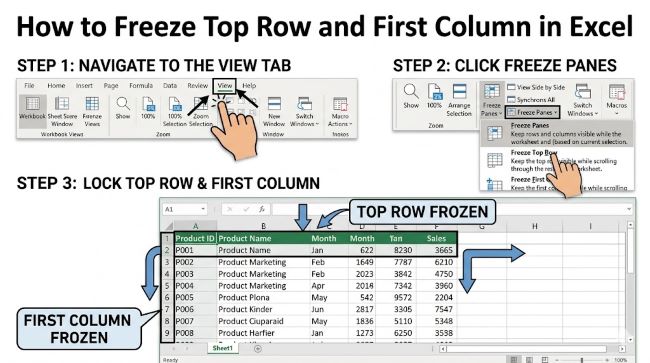
Go to the View tab in Excel’s ribbon. In the Window group, click Freeze Panes (which appears as a dropdown button). Select Freeze Top Row.
That’s it. You’ll notice a slightly thicker grey line appears below row 1. This line indicates where the freeze occurs. Scroll down your spreadsheet. Row 1 remains visible at the top while everything below scrolls normally.
To remove this freeze, go to View > Freeze Panes > Unfreeze Panes.
Freeze the First Column
Freezing the first column uses the same approach. Go to View and click Freeze Panes. Select Freeze First Column.
A grey line appears to the right of column A. Now when you scroll horizontally, column A stays fixed while other columns move. This keeps row identifiers visible as you browse data to the right.
The Powerful Method: Freeze Both Top Row and First Column
To freeze top row and first column simultaneously, you need to understand the selection rule. You select the cell that is immediately below the rows you want to freeze and immediately to the right of the columns you want to freeze.
For freezing just the top row and first column, select cell B2. Go to View > Freeze Panes > Freeze Panes. Now both row 1 and column A remain visible when you scroll in any direction.
The grey lines appear below row 1 and to the right of column A, showing your freeze points. When you scroll down, row 1 stays put. When you scroll right, column A stays put. When you scroll diagonally, both stay frozen.
How to Freeze Multiple Rows
To freeze multiple rows in excel, select the row immediately below the rows you want to freeze. For example, to freeze rows 1 through 3, select cell A4 or the entire row 4. Go to View > Freeze Panes > Freeze Panes.
Now rows 1, 2, and 3 remain visible as you scroll down. The grey line appears below row 3.
The key principle: always select the row below the last frozen row. To freeze the first five rows, select row 6. To freeze rows 1 and 2, select row 3.
How to Freeze Multiple Columns
Freezing columns in excel follows the same logic. To freeze the first three columns, select column D (the column to the right of the last column you want frozen). Go to View > Freeze Panes > Freeze Panes.
Columns A, B, and C remain visible as you scroll right. The grey line appears to the right of column C.
Remember: select the column after the ones you want frozen, not the last frozen column itself.
Freeze Multiple Rows and Multiple Columns Together
This is where the selection rule becomes critical. To freeze top four rows and leftmost three columns, select cell D5. This cell is in row 5 (below row 4) and column D (to the right of column C). Go to View > Freeze Panes > Freeze Panes.
Now rows 1-4 and columns A-C stay frozen. You can scroll through the rest of your data while always seeing your headers and row identifiers.
The pattern holds regardless of how many rows and columns you want to freeze. If you want the first two rows and first five columns frozen, select cell F3 (row 3, column F) and click Freeze Panes.
Understanding the Window Group Menu
When you click Freeze Panes in the View tab, you see several options:
Unfreeze Panes: Removes any active freeze.
Freeze Panes: Applies freezing based on your current cell selection.
Freeze Top Row: Quick shortcut to freeze only row 1.
Freeze First Column: Quick shortcut to freeze only column A.
Use the shortcuts when you only need to freeze one row or column. Use the main Freeze Panes option when you need more flexibility.
Why You Can’t Freeze Middle Rows
Excel only allows freezing from the edges inward. You cannot freeze row 5 while leaving rows 1-4 unfrozen. Freezing always starts from the top and left edges of your spreadsheet.
This limitation exists because freeze panes creates fixed areas. The frozen portion occupies space that cannot be scrolled, so it must start from the beginning of the sheet.
If you need specific middle rows visible, consider using sorting or filtering to reorganize your data, or use split instead of freeze panes.
Split Versus Freeze Panes
Split is different from freeze panes, though many people confuse them. Split divides your spreadsheet into independently scrollable sections without locking rows or columns. Freeze panes locks rows or columns in place.
Use freeze panes when you want headers locked while scrolling. Use split when you want to view two different parts of the spreadsheet simultaneously without one area permanently fixed.
Common Issues and Solutions
Problem: You freeze but the grey line doesn’t appear where expected.
Solution: Make sure you selected the correct cell. The cell should be below and to the right of everything you want frozen. Check your selection before clicking Freeze Panes.
Problem: You want to change your freeze but Unfreeze isn’t visible.
Solution: Click View > Freeze Panes and look for Unfreeze Panes at the top of the menu. Click it to remove the current freeze, then set up a new freeze.
Problem: Your frozen rows are cut off or show incorrectly.
Solution: Make sure all rows you want frozen are fully visible before applying the freeze. If rows are hidden or partially off-screen, the freeze includes them but they might not display correctly.
Problem: You can’t seem to get both rows and columns frozen.
Solution: Remember you must select a cell in both a lower row and further-right column than what you want frozen. Cell B2 freezes top row and first column. Cell C3 would freeze top two rows and first two columns.
When to Use Sticky Tables or Alternative Features
For some situations, Excel offers alternatives to freeze panes:
Excel tables: Converting data to Excel tables provides built-in header management. When you scroll in a table, headers automatically stay visible.
Filter and sort: Sometimes reorganizing your data makes freezing unnecessary.
Named ranges: For specific use cases, named ranges provide alternative navigation methods.
Pivot tables: When analyzing data, pivot tables often provide better organization than large spreadsheets.
However, for traditional spreadsheet work with headers and labels, freeze panes remains the best solution.
Key Takeaways
- How to freeze top row and first column in excel requires selecting cell B2 and clicking View > Freeze Panes > Freeze Panes. This freezes row 1 and column A simultaneously.
- Freeze panes excel feature keeps selected rows and columns visible while scrolling through the rest of your spreadsheet, essential for navigating large datasets.
- Freeze Top Row is the quickest shortcut to lock just your column headers. Freeze First Column locks just your row identifiers.
- How to freeze multiple rows in excel: Select the row immediately below the rows you want frozen, then click Freeze Panes.
- How to freeze columns in excel: Select the column immediately to the right of the columns you want frozen, then click Freeze Panes.
- Lock a row in excel and lock a column in excel use the same freeze panes feature. The terms “lock,” “freeze,” and “pin” all refer to the same function.
- How to freeze panes in excel properly requires understanding that you select cells below and to the right of what you want frozen, not the frozen areas themselves.
- Excel freeze top row is useful for large datasets. Freeze columns in excel keeps identifiers visible. Freezing both provides maximum navigation clarity.
- You cannot freeze middle rows or columns. Freezing always works from the top-left edges inward. To unfreeze, go to View > Freeze Panes > Unfreeze Panes.