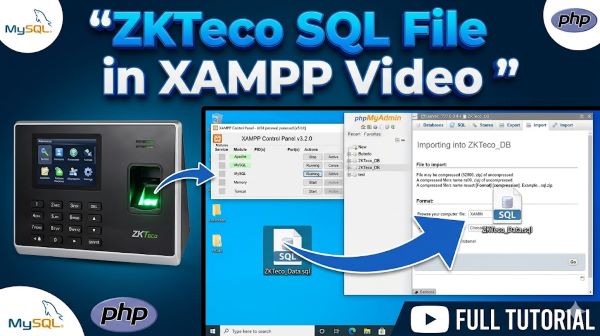
You’ve downloaded a ZKTeco database file. You have XAMPP installed. Now you need to get the two working together. If you’re staring at a SQL file wondering what to do next, you’re not alone. The process isn’t obvious unless you’ve done it before.
Using ZKTeco SQL file in XAMPP video tutorials can help, but not all tutorials are equally clear. Some skip steps assuming you already know things. Others use outdated methods. This guide walks you through the actual process step by step so you understand what you’re doing and why.
Let’s talk about how to properly import your ZKTeco database into XAMPP and get your system working.
Understanding ZKTeco and XAMPP
Before diving into the import process, understanding what you’re working with helps.
ZKTeco is a biometric time attendance and access control system. The software manages employee attendance, facial recognition, and time tracking. It stores data in a database. When you export that database or work with backup files, you get SQL files.
XAMPP is a local development environment. It includes Apache (web server), MySQL (database), PHP (programming language), and Perl (scripting language). The name stands for cross-platform, Apache, MySQL, PHP, Perl. It lets you run web applications locally on your computer without needing internet hosting.
Combining ZKTeco data with XAMPP creates a local system where you can manage and analyze attendance data. You can build custom reports, integrate the data into other systems, or troubleshoot issues.
What You Need Before Starting
Getting everything ready prevents problems during the import process.
You need XAMPP installed and running. If you haven’t installed it, download it from the Apache Friends website. Installation is straightforward. Accept default settings unless you have specific requirements.
You need the ZKTeco SQL file. This is the database export file. It typically has a .sql extension. If you don’t have it, export it from your ZKTeco system or obtain it from your system administrator.
You need a text editor if you want to review the SQL file before importing. Notepad works, but a code editor like Visual Studio Code is better because it highlights syntax.
You need MySQL running through XAMPP. Start XAMPP and ensure MySQL is running. The MySQL module should show green in the XAMPP control panel.
You need phpMyAdmin, which comes with XAMPP. It provides a web interface for managing databases. It’s usually accessible at localhost/phpmyadmin.
Starting XAMPP and MySQL
The first step is getting XAMPP running so MySQL is accessible.
Open XAMPP Control Panel. On Windows, find it in your Start menu or installation folder. On Mac, it’s in Applications. On Linux, open a terminal and navigate to the XAMPP installation directory.
The XAMPP Control Panel shows various modules. You need Apache and MySQL running for this process. Click the Start button next to MySQL if it’s not already running. Wait for it to finish starting. You’ll see a green status indicator when it’s running.
Click the Admin button next to MySQL to open phpMyAdmin. This is where you’ll import your database file. A web browser opens with the phpMyAdmin interface. If it doesn’t open, navigate to localhost/phpmyadmin manually.
Preparing Your ZKTeco SQL File
Before importing, review your SQL file to understand what you’re working with.
Open your ZKTeco SQL file in a text editor. The first lines show SQL commands that create databases and tables. Look for lines like “CREATE DATABASE” or “CREATE TABLE”. These tell you what the file contains.
Check the file size. Large files might take longer to import. Very large files sometimes have issues importing if they exceed server limits.
Look for any obvious errors or incomplete statements at the end of the file. If the file was corrupted during export, the end might be incomplete.
Note the database name. The SQL file contains a CREATE DATABASE statement that specifies the database name. You’ll need this when importing.
Some SQL files include DROP DATABASE IF EXISTS statements at the beginning. These delete any existing database with the same name. This is useful if you’re reimporting after a failed attempt.
Creating a New Database in phpMyAdmin
You can import the SQL file into a new database or existing database. Creating a new database is cleaner.
In phpMyAdmin, click the Databases tab at the top. This shows all existing databases.
Click the Create database button. A form appears asking for the database name. Enter the name from your SQL file or create a new name if you prefer.
Leave the collation setting as is unless you have specific requirements. utf8mb4_general_ci is fine for most uses.
Click Create. A new empty database is created and appears in the databases list.
Importing the SQL File into XAMPP
Now you’re ready to import your actual ZKTeco data.
Click on the database you just created. The database opens and shows it’s empty since you haven’t imported anything yet.
Click the Import tab at the top. The import interface appears.
Under “File to import,” click the Choose File button. Navigate to your ZKTeco SQL file and select it.
The “File uploads” section shows the maximum file size allowed for import. If your file is larger than this limit, you might need to increase the server’s upload limit or split the file into smaller parts.
Leave other settings at their defaults unless you have specific requirements. The character set should be utf8mb4 unless your file uses a different encoding.
Click Import. The import process begins. Depending on file size, this might take a few seconds or several minutes. A progress bar shows the import status.
Import ZKTeco Database in XAMPP Tutorial Step Summary
Here’s a quick reference for the import process:
- Start XAMPP and ensure MySQL is running
- Open phpMyAdmin at localhost/phpmyadmin
- Create a new database with an appropriate name
- Click the Import tab
- Select your ZKTeco SQL file
- Click Import and wait for completion
- Verify the import succeeded by checking for tables in your new database
If you follow these steps, your database imports without issues in most cases.
Troubleshooting Import Issues
Sometimes imports fail. Understanding common issues helps you fix them.
File size too large. If your file exceeds the upload limit, increase the limit in php.ini. Find the upload_max_filesize setting and increase it. Restart Apache after changing it.
Import times out. Very large files might exceed the time limit for script execution. In php.ini, find max_execution_time and increase it. Larger values allow longer processing time.
Syntax errors in the SQL file. If the file is corrupted, you see error messages during import. Try exporting the file again from your ZKTeco system.
Connection refused. If MySQL isn’t running, you can’t import. Start MySQL in XAMPP Control Panel and try again.
Permission denied. Ensure you have proper permissions for the XAMPP installation folder. On Windows, running XAMPP as administrator sometimes helps.
Character encoding issues. If the imported data shows garbled text, the character encoding might be wrong. Export the file with UTF-8 encoding and try again.
Verifying the Import Succeeded
After import completes, verify that your data imported correctly.
Click on your database in phpMyAdmin. A list of tables appears on the left. You should see multiple tables like employee, transaction, device, or similar.
Click on individual tables to view their contents. You should see data like employee names, transaction timestamps, and device information.
Check the row count for each table. The number of rows should match what you expected based on your ZKTeco system.
Look for any tables that appear empty when they shouldn’t be. This might indicate a partial import failure.
If everything looks correct, your import succeeded.
Using ZKTeco SQL File in XAMPP Video Resources
Video tutorials can be helpful for visual learners. When looking for using ZKTeco SQL file in XAMPP video resources, search on YouTube for specific terms like “ZKTeco database import XAMPP” or “importing ZKTeco SQL file.”
Good video tutorials show:
- Opening XAMPP and starting MySQL
- Accessing phpMyAdmin
- Creating a database
- Importing the SQL file
- Verifying the import
Watch several videos and use the clearest one as your guide. Different instructors explain things in different ways. One might click through faster while another pauses to explain each step.
Building on Your Imported Database
Once your database is imported, you can work with it in various ways.
Connect from PHP applications. If you have a PHP application that works with ZKTeco data, point it to your new database. Update the connection settings to use localhost, your database name, and your MySQL credentials.
Create reports using phpMyAdmin tools or SQL queries. You can write queries to analyze attendance patterns, generate reports, or extract specific data.
Export data to other formats. You can export tables as CSV, JSON, or other formats for use in spreadsheets or other applications.
Backup your database. Once imported, back up your database regularly. In phpMyAdmin, you can export the database as an SQL file for backup.
Modify data if needed. You can update, delete, or add records using phpMyAdmin’s interface or SQL queries.
Database Optimization After Import
After importing, consider optimizing your database for better performance.
Rebuild indexes. Over time, databases become fragmented. In phpMyAdmin, you can optimize tables to rebuild indexes and improve query performance.
Check table status. phpMyAdmin shows the size of each table and when it was last optimized. Large tables that haven’t been optimized might benefit from optimization.
Remove duplicate records if any exist. After import, check for duplicate employee records or duplicate transactions that shouldn’t be there.
Archive old data if the database is large. Move old transactions to an archive table to keep the active database smaller and faster.
Backing Up Your Database
After successfully importing, protect your data with regular backups.
In phpMyAdmin, click your database name. Click Export at the top. Choose quick export to create an SQL file backup. Save this file somewhere safe.
Set up regular backups. If you’re using this database regularly, export it weekly or monthly. Regular backups protect you against data loss.
Keep multiple backups in different locations. Don’t rely on a single backup. Keep backups on external drives or cloud storage.
Test your backups. Periodically restore from backup to verify that backups work correctly. A backup that can’t be restored isn’t useful.
Security Considerations
When working with ZKTeco data, security matters.
Change the default MySQL password. By default, XAMPP’s MySQL has no password. Add a password for better security.
Restrict phpMyAdmin access. If this is on a network, password-protect phpMyAdmin or restrict access by IP address.
Don’t expose your local server to the internet. XAMPP is for development. Don’t make your local XAMPP server accessible from the internet.
Use strong passwords for any user accounts in the database.
Keep backups secure. Store backups where unauthorized people can’t access them.
Common ZKTeco Database Fields
Understanding your database structure helps you work with it effectively.
The employee table contains employee information like name, ID, department, and designation.
The transaction table contains attendance records with timestamps showing when employees clocked in or out.
The device table contains information about the time attendance devices, their names, and IP addresses.
The access log table might contain access control information if your system tracks door access.
The holiday table might contain company holiday information for payroll purposes.
Other tables depend on your specific ZKTeco setup and what modules you’re using.
Connecting Your Application to the Database
If you have an application that needs to connect to your imported database, update the connection settings.
In your application’s configuration file, specify:
- Database host: localhost
- Database name: whatever you named it
- Database user: root (default)
- Database password: (default is blank in XAMPP)
Port: 3306 (default MySQL port)
Test the connection to ensure your application can communicate with the database.
Key Takeaways
- Using ZKTeco SQL file in XAMPP video tutorials can help visually, but understanding the process step-by-step is equally important.
- ZKTeco is a biometric attendance system. XAMPP is a local development environment. Together they let you manage attendance data locally.
- Starting XAMPP and ensuring MySQL is running is the first step in any database import process.
- Import ZKTeco database in XAMPP tutorial involves creating a database, accessing phpMyAdmin, and using the Import function.
- The import process is straightforward: select your SQL file and click Import. Most imports complete within minutes.
- Troubleshooting common issues like file size limits or timeout errors involves adjusting php.ini settings.
- Verifying your import succeeded by checking tables and row counts prevents discovering problems later.
- After importing, back up your database immediately. Regular backups protect your data.
- Optimize your database after import for better performance.
- Security matters even for local development. Change default passwords and restrict access appropriately.
- Once imported, you can work with the data through various applications or query it directly using SQL.
- Video tutorials are helpful but follow written guides for accuracy since videos can be outdated or unclear.
- If your import fails, check error messages for clues about what went wrong. Most errors are easily fixable.
- XAMPP’s phpMyAdmin interface is powerful. Spend time exploring it to understand what you can do with your database.
- If you’re new to databases, importing a ZKTeco file is good practice for learning how databases work.
- Once you successfully import a ZKTeco database into XAMPP, you have a foundation for building applications or analyzing attendance data locally.