You have money sitting in your Cash App account. You want to use Apple Pay for your next purchase. Can you transfer funds directly between the two apps? The answer might surprise you.
Understanding how to transfer money from cashapp to apple pay isn’t straightforward because these apps don’t have a direct transfer feature. But you have multiple workarounds that accomplish the same goal. This guide shows you every option available.
Whether you need to move funds quickly or you’re trying to consolidate your digital wallets, this guide covers the solutions that actually work.
Understanding: Cash App vs Apple Pay
How: Cash App and Apple Pay Differ
Cash App is a payment and money transfer app. You store money in a Cash App balance. You can send money to people, pay bills, or spend using a Cash App debit card.
Apple Pay is a contactless payment system. You link your credit cards, debit cards, or bank accounts to Apple Pay. When you pay, you’re using those linked payment methods, not stored funds.
The key difference: Cash App holds your money. Apple Pay accesses your existing accounts.
Understanding this difference explains why direct transfers between the two apps aren’t possible.
Why: Direct Transfers Don’t Exist
Cash App and Apple Pay are run by different companies with different business models. Apple controls Apple Pay. Square owns Cash App.
These companies don’t have integration that allows direct fund transfers between their platforms. You can’t push money from Cash App to Apple Pay directly.
But you can move your money through your bank account or other workarounds. The process takes a few extra steps but works reliably.
Method One: Transfer Via Your Bank Account
Step: One Move Money From Cash App to Your Bank
The most straightforward approach moves your Cash App balance to your bank account first.
Open your Cash App.
Tap the Balance tab at the bottom.
Select Cash Out.
Choose the transfer speed you want. Standard transfer takes one to three business days. Instant transfer costs a small fee.
Select your linked bank account.
Enter the amount you want to transfer.
Tap Confirm and complete the transfer.
Your money moves to your bank account within the timeframe you selected.
Step: Two Link Your Bank Account to Apple Pay
Once your money reaches your bank account, add that account to Apple Pay.
On iPhone: Open the Wallet app > Tap the plus icon > Select Credit or Debit Card > Choose Bank Account > Enter your banking information.
On iPad or Mac: Open Wallet and Apple Pay settings > Add card or account > Select your bank.
Your bank account links to Apple Pay. Now you can use Apple Pay with those funds.
Step: Three Use Apple Pay With Your Linked Account
With your bank account linked, you can use Apple Pay at any compatible merchant.
Hold your iPhone or Apple Watch near a contactless reader.
Authenticate using Face ID, Touch ID, or your passcode.
The payment processes from your linked bank account.
This method takes the most time because it involves moving money between platforms and waiting for transfers to complete.
Method Two: Use a Debit Card as the Bridge
Getting: Your Cash App Debit Card
If you don’t have one already, request a Cash App debit card.
Open Cash App.
Tap the Cash Card icon.
Select Order or Activate.
Follow the setup process to get your physical or digital card.
Once activated, you can load your Cash App balance onto this card.
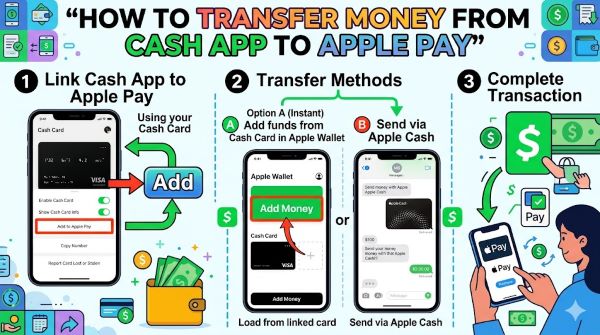
Adding: Cash App Card to Apple Pay
With your Cash App debit card in hand, add it to Apple Pay.
Open Wallet > Tap the plus icon > Credit or Debit Card.
Choose Add manually or use your camera to scan the card.
Enter your card details.
Complete the verification process.
Your Cash App card links to Apple Pay.
Spending: Through Apple Pay With Your Cash App Card
Now you can use Apple Pay with your Cash App card as the payment method.
At checkout or in-store, select Apple Pay.
Your Cash App card processes the transaction.
Funds come from your Cash App balance when you use this method.
This approach works best if you have a Cash App debit card and want to use Apple Pay at merchants.
Method Three: Send Money to Someone With Apple Pay
If: You Want to Share Funds
If your goal is getting money to someone who uses Apple Pay, Cash App can send directly to Apple Pay in some cases.
Open Cash App.
Tap the send button.
Enter the recipient’s information.
If the recipient has Apple Pay set up with the same email or phone number, the transfer might process through Apple’s system.
Not all recipients can receive through this method. It depends on their account setup and the banks involved.
Using: Payment Services Integration
Some situations allow Cash App and Apple Pay to integrate indirectly.
If both services connect to the same bank account, transfers happen through the bank.
The process happens behind the scenes without you manually moving money.
This only works if both apps are linked to identical bank accounts.
Understanding: How to Transfer Money From Apple Pay to Cash App
The: Reverse Process
Moving money from Apple Pay back to Cash App follows similar logic but with different steps.
Apple Pay doesn’t hold money like Cash App does. You must withdraw from your linked account first.
Withdraw your funds from your linked payment method to your bank account.
Transfer from your bank account to Cash App.
This takes longer but accomplishes the goal.
Direct: Transfer Limitations
Just like transferring from Cash App to Apple Pay, transferring from Apple Pay to Cash App has no direct route.
Both services connect to your bank account, but Apple Pay and Cash App don’t communicate directly.
Always route transfers through your bank account for reliability.
How to Set Up Apple Cash
What: Apple Cash Is
Apple Cash is Apple’s money storage system within Apple Pay. It’s different from linking a bank account.
With Apple Cash, you can receive money from other Apple Pay users, load funds to the account, and use those funds for payments.
Apple Cash can receive transfers from other services in some cases.
Setting: Up Apple Cash
Open Wallet.
Tap the plus icon.
Select Apple Cash.
Complete identity verification.
Add a payment method to load funds (credit card, debit card, or bank account).
Your Apple Cash account is ready.
Using: Apple Cash For Transfers
Once set up, you might be able to transfer cash app money to Apple Cash through workaround methods.
Transfer from Cash App to your bank account.
Load those funds to Apple Cash.
You now have funds in Apple Cash instead of Apple Pay with a linked account.
How to Add Cash App to Apple Pay
Direct: Integration Possibilities
Cash App doesn’t integrate directly with Apple Pay. You can’t add Cash App as a payment method within Apple Pay.
But you can add your Cash App debit card to Apple Pay. This achieves similar results.
Once your Cash App card is in Apple Pay, transactions process through that card linked to your Cash App balance.
Steps: To Link Your Cash App Card
Request your Cash App debit card if you don’t have one.
Open Wallet on your iPhone.
Tap the plus icon > Credit or Debit Card.
Scan or manually enter your Cash App card details.
Verify the card with your bank.
Your Cash App card now appears in Apple Pay.
Benefits: Of Linking Your Card
You access your Cash App balance through Apple Pay.
You don’t need to open the Cash App to spend your balance.
You get the convenience of contactless payments at any Apple Pay compatible merchant.
Your spending still draws from your Cash App balance.
How to Verify Cash App
Why: Verification Matters
Verifying your Cash App account increases your security and unlocks features.
Unverified accounts have lower transaction limits.
Verification protects your account from unauthorized access.
Some features only work with verified accounts.
Steps: To Verify Your Account
Open Cash App.
Tap your profile icon.
Select Personal.
Choose Verify Account.
Provide your legal name, birth date, and SSN.
Confirm your information.
Cash App verifies your identity.
This usually takes a few minutes but can take up to 48 hours.
What: Verified Status Unlocks
Higher sending and receiving limits.
Ability to add multiple payment methods.
Access to features like Cash App stocks and Bitcoin trading.
Better fraud protection on your account.
How to Pay Someone With Apple Pay
Finding: Payment Opportunities
Apple Pay works anywhere you see the Apple Pay symbol or contactless payment icon.
Retailers, restaurants, gas stations, and online merchants accept Apple Pay.
You can also pay directly to contacts through the Messages app.
Making: Payments to Contacts
Open the Wallet app or open a conversation in Messages.
Look for the payment option (dollar sign icon).
Enter the amount and recipient.
Select your payment method.
Complete the transaction with Face ID or Touch ID.
The recipient receives the funds in their Apple Cash account if they have one.
In-Store: Payments With Apple Pay
At checkout, tell the cashier you’re paying with Apple Pay.
Hold your iPhone or Apple Watch near the card reader.
Authenticate with Face ID, Touch ID, or passcode.
The transaction completes wirelessly.
No card needed. The payment processes from your linked account or Apple Cash balance.
Security Considerations
Protecting: Your Accounts
Use strong passwords for both Cash App and Apple Pay.
Enable two-factor authentication on all accounts.
Don’t share your verification codes or sensitive information.
Monitor your account activity regularly.
Recognizing: Scams
No legitimate service asks for your Social Security number via text or email.
Don’t trust unsolicited payment requests.
Verify that people are who they claim to be before sending money.
Report suspicious activity to the appropriate service immediately.
Troubleshooting: Common Issues
Problem: Transfer Declined
Your bank might decline the transfer. Contact your bank’s fraud department.
Ensure you have sufficient funds in your Cash App balance.
Verify your linked bank account is in good standing.
Try transferring a smaller amount first.
Problem: Apple Pay Won’t Accept the Card
Make sure your Cash App card hasn’t expired.
Verify you entered the card information correctly.
Check that your billing address matches your card information.
Contact Cash App support if the card consistently fails.
Problem: Funds Stuck in Limbo
Transfers between apps sometimes take longer than expected.
Check your bank account to see if funds landed there.
If a transfer shows pending, wait the full timeframe before contacting support.
Save your transaction confirmation numbers for reference.
Key Takeaways
- How to transfer money from cashapp to apple pay requires moving funds through your bank account first, as no direct transfer exists between the apps.
- How to transfer money from cash app to apple pay without card is possible by moving funds to your bank and linking that account to Apple Pay.
- How to set up apple cash involves opening Wallet, selecting Apple Cash, and completing identity verification.
- How to pay someone with apple pay works at compatible merchants or directly to contacts in your phone.
- How to use apple pay on iPhone requires adding a payment method to Wallet and authenticating transactions with Face ID or Touch ID.
- How to transfer money from apple pay to cash app follows the reverse process: withdraw to bank account, then transfer to Cash App.
- How to add cash app to apple pay directly isn’t possible, but you can add your Cash App debit card to Apple Pay.
- How to add cash to cash app card means loading your Cash App balance before using the card for payments.
- How to transfer apple pay to cash app requires moving through your bank account as an intermediate step.
- How to verify cash app unlocks higher transaction limits and security features within the app.
- The most reliable method is moving funds through your bank account to avoid app compatibility issues.
- Transaction times vary depending on your bank and the transfer method you choose.
- Both Cash App and Apple Pay support linking to the same bank account for easier fund management.
- Security matters with both apps. Enable all available security features.
- Contact customer support if transfers fail or funds disappear.