You try to send an email. It bounces back with a cryptic error message: 550 permanent failure for one or more recipients. Your email didn’t deliver. You don’t know why or how to fix it.
This error confuses most people because it’s technical and doesn’t explain the actual problem. But understanding 550 permanent failure helps you resolve it. Most of the time, you can fix the issue without contacting technical support.
This guide explains what this error means, why it happens, and concrete steps to get your emails delivering again.
Understanding SMTP Error Codes:
What Error 550 Means:
SMTP stands for Simple Mail Transfer Protocol. It’s the system your email client uses to send messages.
When an email fails to send, the mail server returns an error code. Error 550 is a permanent failure code.
550 permanent failure for one or more recipients specifically means the server rejected your email for delivery to one or more addresses. The rejection is permanent, not temporary.
Permanent failure means the server won’t accept this email for those recipients. Retrying won’t help. Something is fundamentally wrong.
Why It’s Called Permanent:
Temporary errors are called 4xx errors. The server might retry temporary failures.
Permanent errors are 5xx errors. The server gives up and reports failure to you.
550 permanent failure is the server saying: “I won’t deliver this email. Stop trying.”
Understanding this distinction helps you know whether waiting and retrying makes sense or whether you need to fix something.
Common Causes of 550 Errors:
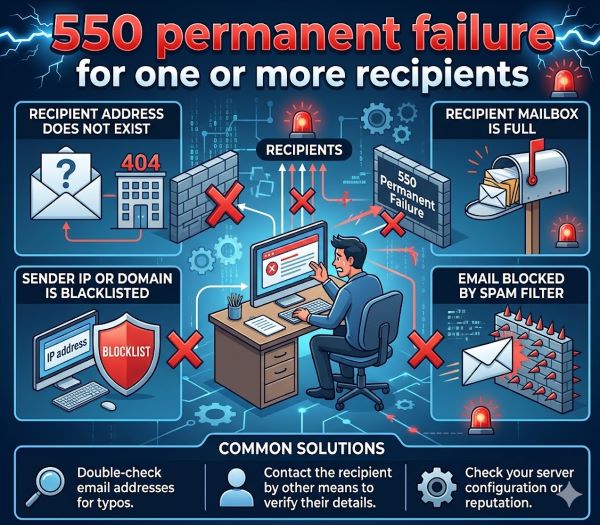
The Recipient Email Address Is Invalid:
The most common cause is a typo in the recipient’s email address.
If you typed “jsmith@companey.com” instead of “jsmith@company.com,” the server can’t find that address.
The domain doesn’t exist or the username doesn’t exist on that domain.
The server rejects the email because the address is invalid.
The Recipient’s Mailbox Is Full:
Some mail servers reject emails if the recipient’s mailbox has reached capacity.
The recipient hasn’t deleted old emails. The mailbox is completely full.
New emails can’t be delivered. The server returns a 550 error.
The recipient needs to delete emails to make space before accepting new messages.
The Recipient’s Email Address Has Been Disabled:
The recipient might have deleted their email account.
The company might have deactivated the email address when they left.
The domain might have shut down.
The server can’t deliver to addresses that don’t exist anymore.
The Sender’s IP Address Is Blacklisted:
Your IP address might be on a spam blacklist.
If your internet provider’s IP got flagged for spam, new emails from that IP get rejected.
The mail server refuses all emails from that IP regardless of content.
Getting off a blacklist requires contacting the blacklist maintainers.
The Sender’s Domain Reputation Is Poor:
If your domain sends lots of spam, mail servers downgrade your reputation.
Servers might reject emails from domains with poor reputation.
Building good reputation takes time and consistent good email practices.
Email Content Looks Like Spam:
Your email might contain content that triggers spam filters.
Certain phrases or too many links get flagged as spam.
Excessive capital letters or suspicious attachments trigger filters.
Legitimate emails sometimes get caught by overzealous filters.
Authentication Records Are Missing:
SPF, DKIM, and DMARC are authentication systems that prove you own your domain.
Without these records, mail servers distrust your emails.
Some servers reject emails that fail authentication checks.
Setting up these records prevents authentication-related 550 errors.
Troubleshooting 550 Permanent Failure Errors:
Step One: Verify the Recipient’s Email Address
Double-check the recipient’s email address for typos.
Copy and paste it from a reliable source if possible.
Ask the recipient to confirm their correct email address.
Test by sending to a different email address from the same domain.
If the different address works, the original address is invalid or doesn’t exist.
Step Two: Check Email Recipient Details
Make sure you’re using the complete email address with the domain.
Don’t use just “jsmith” without the domain part.
Ensure the email format is correct: username@domain.com.
Remove any extra spaces before or after the address.
Step Three: Ask the Recipient to Check Their Mailbox
Contact the recipient through another method and ask if their mailbox is full.
Ask them to delete old emails to make space.
Ask them to check if they recently closed or disabled that email account.
Confirm they’re still using that email address.
Step Four: Check Your IP Reputation
Visit IP reputation checkers like MXToolbox or BarracudaCentral.
Search for your sending IP address.
See if it appears on any spam blacklists.
If blacklisted, contact the blacklist to request removal.
Provide proof that you’ve fixed the spam issue.
Step Five: Verify SPF, DKIM, and DMARC Records
Log into your domain registrar or hosting control panel.
Look for DNS settings or records.
Check that SPF records are configured correctly.
Verify DKIM records are in place.
Confirm DMARC policy is set up.
Use MXToolbox to verify these records are correct.
If records are missing or wrong, add or correct them.
Step Six: Check Email Content
Review your email for spam triggers.
Remove excessive capital letters.
Reduce the number of links in the email.
Avoid suspicious attachments if possible.
Use plain language instead of marketing hype.
Test your email with a spam checker before sending.
Step Seven: Try Sending From a Different Email Account
If you have another email account, try sending from that.
If the email sends successfully from another account, your original account has an issue.
Your IP address or sending domain might have a reputation problem.
Step Eight: Contact Your Email Service Provider
If you use Gmail, Outlook, or another provider, contact their support.
Explain the error and the recipient address.
Ask if your account is flagged for spam.
Ask if there are restrictions on your sending.
Request help getting off any blacklists.
Step Nine: Contact the Recipient’s Email Provider
If the recipient uses a corporate email system, contact their IT department.
Ask if they’re receiving emails from your address.
Ask if there’s a firewall or filter blocking your emails.
Request they whitelist your email address or domain.
Understanding Different 550 Error Messages:
550: User Unknown
This means the recipient’s email address doesn’t exist on that domain.
Check the spelling and format of the email address.
Ask the recipient to confirm their correct address.
550: Mailbox Unavailable
The mailbox exists but is currently unavailable.
The recipient’s email account might be disabled or suspended.
The mail server might be temporarily having issues.
Try sending again in a few minutes.
550: Access Denied
The server is rejecting emails from your IP or domain.
Your sending IP might be blacklisted.
Your domain reputation might be too poor.
You might need to authenticate through SPF, DKIM, or DMARC.
550: Command Not Permitted
Your email client or server isn’t properly configured.
SMTP settings might be wrong.
Authentication credentials might be incorrect.
Check your email client’s SMTP configuration.
Prevention Strategies for the Future:
Maintain Good Email Practices:
Send emails only to people who want to receive them.
Don’t buy email lists or send unsolicited bulk emails.
Make unsubscribe options available in your emails.
Honor unsubscribe requests immediately.
Send from a consistent domain and IP address.
Build Domain Reputation:
Use a dedicated domain for email sending.
Don’t frequently change your IP address.
Keep your bounce rate low.
Respond to complaints and unsubscribe requests.
Monitor your sender reputation score.
Implement Authentication Records:
Set up SPF records to identify your mail servers.
Configure DKIM to sign your emails.
Implement DMARC policy to align SPF and DKIM.
Verify these records are correct regularly.
Validate Email Lists:
Before sending bulk emails, validate all addresses.
Use an email validation service to check addresses.
Remove invalid addresses from your list.
Maintain clean email lists by removing bounces regularly.
Monitor Delivery Metrics:
Track your bounce rate and delivery statistics.
Watch for patterns in failures.
Adjust your approach if many emails bounce.
Contact recipients if email issues persist.
Special Situations:
Corporate Email Systems:
Large companies sometimes have strict email filters.
Your emails might be filtered as spam even if legitimate.
Ask your IT department to whitelist your address.
Send from a professional business domain.
International Emails:
Some countries have different email standards.
International domains might use different SPF or DKIM requirements.
Research the specific requirements for the country’s email system.
Marketing Email Campaigns:
Bulk marketing email has stricter requirements.
List quality matters more than volume.
Authentication is essential for marketing emails.
Monitor metrics closely and adjust practices based on results.
Key Takeaways
- 550 permanent failure for one or more recipients means the mail server rejected your email for one or more addresses permanently.
- 550 permanent failure is a 5xx error code, indicating a permanent issue rather than a temporary glitch.
- The most common cause is a typo in the recipient’s email address.
- Check that email addresses are spelled correctly and in the proper format.
- A full mailbox can trigger 550 errors. Ask the recipient to delete old emails.
- Disabled or deleted email accounts cause permanent failures. Verify the account still exists.
- Your IP address might be on a spam blacklist. Check your reputation score.
- Poor domain reputation causes mail servers to reject your emails. Build reputation through good email practices.
- Authentication records like SPF, DKIM, and DMARC prevent rejection errors. Set them up if missing.
- Spam-like content triggers filters. Review email content for spam triggers.
- Different 550 error subtypes mean different problems. Read the full error message for details.
- Verify your SMTP settings in your email client if errors persist.
- Contact your email provider or the recipient’s provider for help resolving delivery issues.
- Maintain clean email lists by validating addresses and removing bounces regularly.
- Monitor your bounce rate and sender reputation score continuously.
- Don’t use purchased email lists. They have high invalidity rates.
- Respond promptly to complaints and unsubscribe requests.
- Send only to people who want to receive your emails.
- Test emails before sending bulk campaigns.