You built the chart, stepped back to look at it, and the data is running the wrong direction. What should be on the horizontal axis is sitting on the vertical one, and the chart tells the opposite story from what you intended. Knowing how to switch x and y axis in Excel is one of those things that sounds like it should be a single button, and sometimes it almost is, but the right method depends on what type of chart you are working with and what exactly you want to swap. This guide covers every approach: the quick switch for most chart types, the specific fix for scatter plots, and what to do when swapping axes requires rethinking your source data layout.
Why Excel Puts Data on the Wrong Axis
Before getting into the fix, it helps to understand why this happens. When you select a data range and insert a chart, Excel makes decisions about which data goes on which axis. It uses the shape of your selection as a guide:
- If your selection is taller than it is wide (more rows than columns), Excel plots rows as data series and columns as categories on the X axis.
- If your selection is wider than it is tall (more columns than rows), Excel reverses this.
Excel also makes assumptions based on the first row and first column of your selection, using them as labels. When your data layout does not match Excel’s assumptions, the axes end up swapped from what you want.
The good news is that fixing it does not require rebuilding the chart from scratch.
Method 1: Switch Rows and Columns (Works for Most Chart Types)
This is the fastest method for bar charts, column charts, line charts, and area charts. It swaps what Excel treats as the data series against what it treats as the category axis (X axis).
Step 1: Click on your chart Click anywhere inside the chart to select it. The Chart Design tab appears in the ribbon.
Step 2: Click Switch Row/Column In the Chart Design tab (Excel 2016 and later), find the Data group. Click Switch Row/Column.
Excel immediately swaps the axes. What was on the X axis moves to the Y axis and vice versa.
That is the entire process for most charts. If the result looks right, you are done.
If the button is greyed out, your chart is not connected to a live data range in the way Excel expects. In that case, you need Method 2 or Method 3.
Finding it in older versions of Excel:
- Excel 2013: Chart Tools > Design tab > Switch Row/Column
- Excel 2010: Chart Tools > Design tab > Switch Row/Column (same location)
- The button has existed since Excel 2007.
Method 2: Edit the Data Source Manually
The Switch Row/Column button handles the common case. When you need more control over exactly what goes on each axis, the Select Data Source dialog gives you precise options.
Step 1: Click on your chart Select the chart so the Chart Design tab appears.
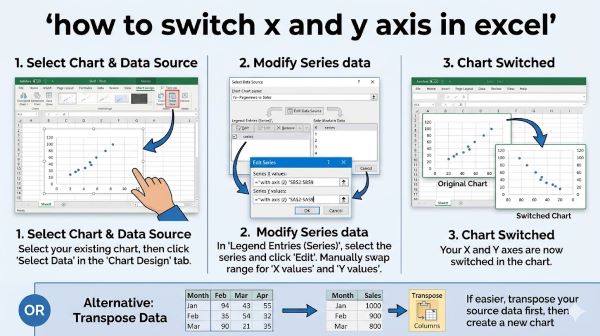
Step 2: Open Select Data Click Select Data in the Chart Design tab (Data group). The Select Data Source dialog opens.
The dialog has two main sections:
- Legend Entries (Series) on the left: these are your data series, the lines or bars on the chart.
- Horizontal (Category) Axis Labels on the right: this is what appears along the X axis.
Step 3: Review what is currently assigned Look at what Excel has put in each section. If your data series should be your categories and your categories should be your series, the layout is backwards.
Step 4: Click Switch Row/Column inside the dialog There is a Switch Row/Column button inside the Select Data Source dialog as well. Clicking it here has the same effect as clicking it in the ribbon.
Step 5: Manually reassign series and axis labels if needed If Switch Row/Column does not produce what you want, you can manually edit each series:
- Select a series in the Legend Entries panel and click Edit.
- In the Edit Series dialog, change the Series name, Series X values, and Series Y values by typing new cell ranges.
- Click OK.
This level of control is useful when your data layout is non-standard or when you want different columns to serve as the axis versus the data.
Method 3: Switch X and Y Axis in a Scatter Plot
Scatter plots (XY scatter charts) work differently from other chart types. In a scatter plot, both axes plot numerical values. There is no category axis. The X values and Y values come directly from two columns (or rows) of numbers.
When your scatter plot has the axes backwards, the Switch Row/Column button does not help in the way it does for other chart types. You need to edit the series data directly.
Step 1: Click on your chart to select it
Step 2: Open Select Data Chart Design tab > Select Data.
Step 3: Select your data series In the Legend Entries panel, select the series you want to fix and click Edit.
Step 4: Swap the X and Y ranges The Edit Series dialog shows:
- Series X values: the cell range currently plotted on the X axis
- Series Y values: the cell range currently plotted on the Y axis
Swap the two ranges. If X values were in column B (=B$2: B20)andYvalueswereincolumnC(=20) and Y values were in column C (= C2:2: C20),changeXvaluesto=20), change X values to = C2:2: C20andYvaluesto=20 and Y values to = B2:2: B$20.
Click OK, then Close.
The scatter plot redraws with the axes switched. The data points stay the same but their positions on the chart flip.
Alternative for scatter plots: If your data is in columns and you want to swap them, you can also physically move the column data in your spreadsheet. Swap the contents of the two columns (cut one, insert a new column, paste, delete the old), and the chart updates automatically. This is less elegant but works if you prefer not to edit series references.
Method 4: Transpose Your Source Data
Sometimes the axis problem comes from the layout of your source data rather than a chart setting. If your data runs in rows when Excel expects columns (or vice versa), the axes will feel backwards no matter what chart adjustments you make.
Transposing the data rearranges it so rows become columns and columns become rows, which often resolves axis confusion at the source.
How to transpose data in Excel:
- Select your source data range.
- Copy it (Ctrl+C).
- Click an empty cell where you want the transposed data to land.
- Right-click and choose Paste Special.
- Check the Transpose checkbox at the bottom of the Paste Special dialog.
- Click OK.
Excel pastes the data rotated 90 degrees. Rows become columns and columns become rows.
After transposing, delete your original chart and create a new one from the transposed data. The chart should now lay out the axes the way you expect.
Note: Transpose creates a static copy of your data. If your original data updates, the transposed copy does not update automatically. For live data, use the TRANSPOSE function instead:
Enter =TRANSPOSE(A1:D10) (adjust the range to your data) as an array formula. In Excel 365 and Excel 2019, this spills automatically. In older Excel versions, select the destination range first, type the formula, and press Ctrl+Shift+Enter to enter it as a legacy array formula.
How to Reverse the Direction of a Single Axis
Switching axes is different from reversing the direction of an axis. If your X axis runs right to left instead of left to right, or your Y axis runs top to bottom instead of bottom to top, that is an axis direction issue, not an axis swap.
To reverse an axis direction:
- Double-click the axis you want to reverse. The Format Axis pane opens on the right.
- Under Axis Options, look for Categories in reverse order (for a category axis) or Values in reverse order (for a value axis).
- Check the box.
The axis direction flips. The data stays the same; only the reading direction changes.
This fix is useful when time-series data runs backwards (newest dates on the left instead of the right) or when a bar chart sorts from bottom to top instead of top to bottom.
How to Label Axes After Switching
Once you have the axes where you want them, make sure the axis labels accurately describe what is now on each axis. Mislabeled axes after a swap cause confusion for anyone reading the chart.
To add or edit axis titles:
- Click on the chart.
- Click the + (Chart Elements) button that appears to the right of the chart.
- Check Axis Titles.
- Click on the axis title text that appears and type your label.
For the horizontal X axis, the title sits below the axis. For the vertical Y axis, the title sits to the left of the axis, rotated vertically.
If axis titles already exist from before the swap, double-click each one and update the text to match the new axis content.
Common Problems and Fixes
The Switch Row/Column button is greyed out This happens when the chart type does not support the switch (scatter plots, bubble charts) or when the chart was created from non-contiguous selections. Use Method 2 (Select Data) to manually reassign axis data.
The chart looks wrong after switching Check whether your chart type expects categorical data or numerical data on the X axis. Switching rows and columns on a chart that expects categories can produce unexpected results if your new X axis contains numbers instead of labels. You may need to format the axis as a category axis rather than a value axis. Double-click the X axis, open Format Axis, and under Axis Type select “Text axis.”
Dates appear on the wrong axis Excel sometimes treats date columns as values rather than categories, which can place them on the Y axis. In the Format Axis pane, set Axis Type to “Text axis” to force dates to behave as category labels.
The pivot chart axes are stuck Pivot charts have limited axis flexibility because their layout reflects the pivot table structure. To change axis assignment in a pivot chart, reorganize the pivot table fields: move fields between the Rows, Columns, and Values areas in the PivotTable Field List. The chart updates to reflect the new layout.
Key Takeaways
- How to switch x and y axis in Excel for most chart types: click the chart, go to Chart Design tab, click Switch Row/Column. Done.
- For scatter plots, Switch Row/Column does not work as expected. Use Select Data > Edit series and manually swap the X values and Y values cell ranges.
- The Select Data Source dialog gives full manual control over what data appears on each axis, including renaming series and reassigning axis label ranges.
- Transposing your source data (Paste Special > Transpose) fixes axis problems that come from the underlying data layout rather than chart settings.
- Reversing axis direction (Format Axis > Values in reverse order) is different from swapping axes. Use it when an axis runs in the wrong direction but is on the correct side.
- After any axis switch, update your axis titles to accurately describe what is now on each axis.
- If the Switch Row/Column button is greyed out, the chart type or data selection requires manual series editing through Select Data.
- For pivot charts, reorganize the pivot table field layout instead of trying to edit the chart directly.