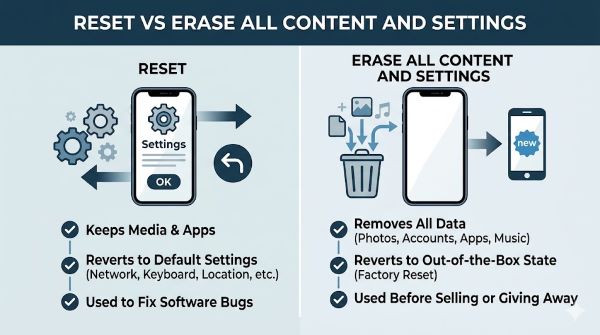
You are staring at the Settings menu on your iPhone or iPad, trying to figure out which option to tap, and the language Apple uses is not helping. The difference between reset vs erase all content and settings is one of the more common points of confusion in iOS, and it matters significantly because these two paths produce very different outcomes. One is reversible and targeted. The other wipes everything. Choosing the wrong one at the wrong time ranges from mildly frustrating to genuinely catastrophic for your data. This guide walks through exactly what each option does, what data it affects, when to use which one, and what to do before you tap anything.
What the Reset Options Actually Are
Apple groups several options together under the general idea of “resetting” your device, but they are not equivalent. The confusion comes from the fact that Apple uses the word “reset” both as a category label and as a specific action within that category.
On an iPhone or iPad running iOS 15 and later, the options live under Settings > General > Transfer or Reset iPhone. On older iOS versions, they are under Settings > General > Reset.
Here is what you will find in that menu:
- Reset All Settings
- Erase All Content and Settings
- Reset Network Settings
- Reset Keyboard Dictionary
- Reset Home Screen Layout
- Reset Location and Privacy
The “reset” options in this list are targeted. Each one resets a specific category of settings while leaving your apps, photos, messages, and other data untouched. Erase All Content and Settings is in a different category entirely. It is not a reset. It is a full wipe.
What Reset All Settings Does
Reset All Settings is the most commonly confused option. People tap it thinking it will fix a software problem without touching their data. That part is correct. But “all settings” covers more ground than most people expect.
What Reset All Settings removes:
- Wi-Fi networks and passwords
- Bluetooth pairings
- VPN configurations
- Cellular settings
- Notification preferences for every app
- Display settings (brightness preferences, text size if changed in Accessibility)
- Privacy and location permissions for apps
- Apple Pay cards (they are removed from the device; you re-add them in Wallet)
- Keyboard settings and autocorrect customizations
- Accessibility settings
- Focus modes and Do Not Disturb configurations
- Siri settings
What Reset All Settings keeps:
- All photos and videos
- All apps and their data
- Messages and call history
- Health data
- Music, podcasts, and downloaded media
- Notes, contacts, calendar entries
- iCloud account and sign-in status
The device reboots after the reset and comes back with factory default settings applied to every preference category, but all your content is still there. You will need to re-enter Wi-Fi passwords, re-pair Bluetooth devices, and reconfigure notifications from scratch.
When to use Reset All Settings:
- Your device is behaving strangely and you suspect a corrupt settings file is the cause
- Bluetooth or Wi-Fi connectivity problems that basic troubleshooting has not fixed
- App notifications stopped working correctly
- Battery drain you cannot explain after a software update
- Before trying Erase All Content and Settings, as a less destructive first attempt
What Erase All Content and Settings Does
Erase All Content and Settings is a full factory reset. When you tap this, the device deletes everything and returns to the state it was in when it left the factory. This is the option that requires the most caution.
What Erase All Content and Settings removes:
- All apps (both Apple’s built-in apps reset to defaults and any apps you installed are gone)
- All photos and videos stored locally on the device
- All messages (iMessage, SMS)
- All contacts stored locally (not in iCloud)
- All email accounts and their locally stored data
- All music, podcasts, and downloaded media
- Health and fitness data stored locally
- Saved passwords in Keychain
- Apple Pay cards
- All settings (everything Reset All Settings would remove, plus all content)
- Your Apple ID sign-in (the device signs you out)
What Erase All Content and Settings keeps:
Nothing on the device. That is the point. After the erase, the device shows the initial setup screen as if it just came out of the box.
What can be recovered after an erase:
This is where iCloud and iTunes/Finder backups matter. If you have an iCloud backup or a local backup made through Finder (Mac) or iTunes (Windows), you can restore from that backup during the initial setup process after the erase. A complete, recent backup means the erase is reversible. No backup means the data is gone.
When to use Erase All Content and Settings:
- You are selling, trading in, or giving away the device to someone else
- Your device has a persistent software problem that Reset All Settings did not fix
- You are troubleshooting with Apple Support and they have asked you to perform a full reset
- Your device has been compromised or you want a completely clean slate
- The device is running poorly and you want to start fresh without junk from years of app installs
The Specific Reset Options: What Each One Targets
Beyond Reset All Settings and Erase All Content and Settings, the other reset options in the menu are surgical tools for specific problems.
Reset Network Settings Clears all Wi-Fi networks and passwords, Bluetooth pairings, cellular settings, and VPN configurations. Your apps and data stay. Use this when you are having persistent Wi-Fi or Bluetooth issues that are not fixed by forgetting a specific network or unpairing a device. After this reset, you will rejoin Wi-Fi networks manually and re-pair Bluetooth accessories.
Reset Keyboard Dictionary Removes all the words your keyboard has learned from you over time, including any words you told it to remember or stop autocorrecting. This does not affect your contacts, notes, or any other data. Use it if autocorrect has become unreliable or if it has learned incorrect spellings that keep appearing.
Reset Home Screen Layout Returns your home screen to the default Apple layout, with built-in apps arranged the way they are on a new device. Apps you installed move to the App Library but are not deleted. Use this if your home screen has become disorganized and you want to start the layout from scratch, or if app icons are not appearing correctly after a software update.
Reset Location and Privacy Resets all location and privacy permissions for every app on the device. After the reset, apps ask for permission again the next time they need your location, camera, microphone, contacts, or other private data. Use this if an app seems to have permissions you did not grant, or if you want to audit and re-approve each app’s access from a clean starting point.
Before You Do Either: The Backup Question
Before tapping either Reset All Settings or Erase All Content and Settings, take a minute to think about what you cannot afford to lose.
For Reset All Settings, your content is safe, but you should still check that you have your Wi-Fi passwords saved somewhere other than your phone’s memory, because you will need to re-enter them.
For Erase All Content and Settings, a backup is not optional if you care about your data. Check these before proceeding:
iCloud Backup: Go to Settings > your name > iCloud > iCloud Backup. Check the date of the last backup. If it is recent (within the last day or two), you are in good shape. If it has been weeks, either enable backup now and wait for it to complete, or connect to a computer and make a local backup.
Photos: If you use iCloud Photos, your photos are already in iCloud and will not be lost. If you do not use iCloud Photos, connect your phone to a computer and copy the photos to your hard drive before erasing.
Messages: iMessage threads are backed up to iCloud if you have Messages in iCloud enabled (Settings > your name > iCloud > Messages). SMS messages are included in iCloud backups. If you need specific message threads, consider taking screenshots or using a third-party export tool.
Contacts, Calendar, Notes: If these are synced to iCloud, Google, or another account, they exist in the cloud and restore automatically after setup. If you store contacts only on the device with no cloud sync, export them before erasing.
How to Perform Each Option
To Reset All Settings:
- Open Settings
- Tap General
- Tap Transfer or Reset iPhone (or just Reset on older iOS)
- Tap Reset
- Tap Reset All Settings
- Enter your passcode if prompted
- Confirm the reset
The device reboots. The process takes a few minutes. All your content is waiting when it comes back.
To Erase All Content and Settings:
- Open Settings
- Tap General
- Tap Transfer or Reset iPhone
- Tap Erase All Content and Settings
- Tap Continue
- Enter your Apple ID password when prompted (this removes Activation Lock)
- Confirm the erase
The device erases itself and reboots to the setup screen. The erase process can take 10 to 20 minutes depending on how much data is on the device.
Note on Activation Lock: When you erase a device you are keeping, you sign back in with your Apple ID during setup. When you erase a device you are giving away, the erase process removes Activation Lock as part of the confirmation step. This is why the Apple ID password is required: without it, the next owner cannot set up the device.
A Practical Scenario Guide
“My iPhone has been acting slow and glitchy since the last update.” Try Reset All Settings first. If it does not help, escalate to Erase All Content and Settings with a fresh restore from backup.
“I’m selling my iPhone.” Erase All Content and Settings. No backup needed for you (unless you want to restore to a new phone). The erase removes your Apple ID and hands the device to the buyer clean.
“My Wi-Fi keeps dropping and nothing else has worked.” Reset Network Settings. More targeted than resetting all settings, and faster.
“My autocorrect is embarrassing me.” Reset Keyboard Dictionary. Nothing else changes.
“I’m passing my old iPad to my kid and want to start fresh.” Erase All Content and Settings after backing up anything you want to keep.
“An app is asking for location permissions but I don’t remember approving it.” Reset Location and Privacy to force every app to ask again from scratch.
Key Takeaways
- Reset vs erase all content and settings are not the same operation. Reset All Settings removes preferences and configurations but keeps all your data. Erase All Content and Settings removes everything.
- Reset All Settings is useful for fixing software behavior issues (Wi-Fi drops, notification problems, unexplained battery drain) without touching photos, apps, or messages.
- Erase All Content and Settings is the right choice when selling a device, starting completely fresh, or when Reset All Settings did not solve a persistent problem.
- The targeted reset options (Network Settings, Keyboard Dictionary, Home Screen Layout, Location and Privacy) are surgical tools. Use them when you know what specific system is causing a problem.
- Before performing Erase All Content and Settings, verify that your iCloud backup is recent, your photos are in iCloud Photos or copied to a computer, and your contacts and messages are synced to a cloud account.
- The Apple ID password is required during Erase All Content and Settings to remove Activation Lock. Have it ready before you start.
- On iOS 15 and later, these options are under Settings > General > Transfer or Reset iPhone. On older versions, they are under Settings > General > Reset.
- If Reset All Settings does not resolve a software issue, the next step is Erase All Content and Settings with a restore from backup, before escalating to Apple Support or a hardware diagnosis.