You’re writing an essay or report. Your teacher or boss requires one inch margins. You open Google Docs and stare at the blank page. Where’s the margin setting? Google Docs doesn’t make it obvious.
Understanding how to do one inch margins on Google Docs is essential for anyone writing formal documents. Whether you’re submitting a college essay, a work report, or following MLA or APA formatting, margins matter. Getting them right the first time saves you from reformatting later.
This guide shows you exactly where to find margin settings, how to apply them correctly, and how to save your preferences for future documents. You’ll be done in under two minutes.
What Margins Actually Are
Understanding the Purpose
Margins on google docs are the spaces between your text and the edges of the page. They’re not part of your document content. They’re buffer space that makes your document readable and professional.
Most formal documents require specific margins. Standard one inch margins means one inch on all sides: top, bottom, left, and right.
Margins serve practical purposes. They prevent text from running off the edge of the paper when printed. They give readers space to write notes. They make documents look balanced and professional.
Different formatting styles require different margins. MLA format requires 1 inch margins on all sides. APA format also requires 1 inch margins. Chicago style requires 1 inch margins. Most academic and professional documents expect 1 inch margins as standard.
Why Default Margins Matter
Google Docs ships with default margins that are not one inch. The default is closer to three quarters of an inch or varies based on your page size and settings.
If your assignment requires specific margins, you must adjust them. Submitting a document with wrong margins might result in point deductions or rejection.
Getting margins right at the beginning saves time. You don’t want to reformat after writing your entire essay.
Accessing Margin Settings in Google Docs
Finding the File Menu
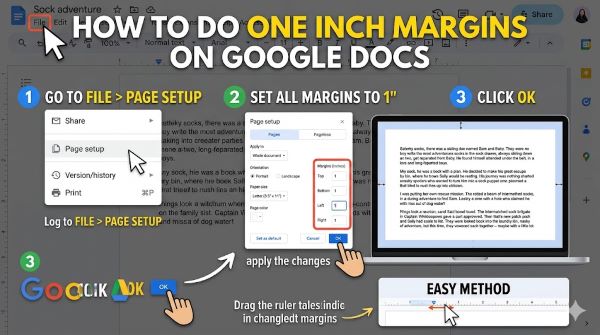
Click File in the top left of your Google Docs window.
A dropdown menu appears with various options.
Look for Page setup in that menu. This is where margin controls live.
Click Page setup. A dialog box opens with formatting options including margins.
This is the main path to margin adjustment in Google Docs. It’s the same whether you’re on Windows, Mac, or using a Chromebook.
Understanding the Page Setup Dialog
Once you open Page setup, you see several options.
At the top, you can change your page size. Leave this as Letter unless your assignment specifies differently.
Below that, you see margin settings. There are four boxes: top, bottom, left, and right.
The default margins display in these boxes. Most likely, they’re not set to one inch yet.
Setting One Inch Margins
Changing Top Margin
Click in the Top margin box. It currently shows a value, probably something like “0.75” inches.
Select all text in that box by triple-clicking or using Ctrl+A.
Type “1” or “1 inch”. Google Docs accepts both formats.
Move to the next field. The top margin is now set to one inch.
Changing Bottom Margin
Click in the Bottom margin box.
Clear the current value.
Type “1” or “1 inch”.
Move to the next field. The bottom margin is now one inch.
Changing Left Margin
Click in the Left margin box.
Clear the current value.
Type “1” or “1 inch”.
Move to the next field. The left margin is now one inch.
Changing Right Margin
Click in the Right margin box.
Clear the current value.
Type “1” or “1 inch”.
This is your last margin to set. The right margin is now one inch.
Applying the Changes
Once you’ve set all four margins to one inch, click OK or Apply at the bottom of the dialog box.
Google Docs applies the margins to your document instantly.
Your document reformats. Text that extended to edges now pulls back to match your new margins.
Verifying Your Margins Are Correct
Visual Confirmation
Look at your document. You should see white space (the margin) around all four edges.
Text begins one inch from the top of the page.
Text ends one inch from the bottom of the page.
Text begins one inch from the left edge.
Text ends one inch from the right edge.
If the spacing looks balanced on all sides, your margins are set correctly.
Checking the Ruler
Google Docs displays a ruler at the top and left side of your document.
The ruler shows where your margins begin. The gray area represents margins. The white area is your text space.
If you set margins correctly, the ruler shows them starting at the one inch mark on the ruler.
You can see the indent markers on the ruler. The left indent marker should start at the one inch point. The right indent marker should be about 5.5 inches from the left on a standard letter-sized page.
Printing to Verify
If you’re writing for a printed assignment, print a test page.
Check that text doesn’t run off the edges.
Measure the margins with a ruler if you’re unsure. They should be one inch on all sides.
If margins look wrong when printed, you might need to adjust your printer settings separately from Google Docs margins.
How to Change Margins in Google Docs for Existing Documents
Applying Margins to Current Document
If you already have text in your document, applying margins reformats everything.
Open the document.
Go to File > Page setup.
Set your margins to one inch as described above.
Click OK.
Google Docs reformats your entire document instantly. All text adjusts to the new margins.
Your page count might change. Documents with larger margins fit fewer words per page, so your document might become longer.
Making Sure Changes Apply to Entire Document
By default, margin changes apply to your entire document.
Google Docs doesn’t allow different margins for different sections of the same document. Every page has the same margins.
If you need different margins for different sections, you need to create separate documents or use page breaks and manual adjustments.
For most assignments, uniform margins throughout are what’s expected anyway.
Saving Margin Settings as Default
Using Margins for Every Document
Once you set margins to one inch, they apply only to that document.
If you want one inch margins in every new document you create, set them as your default.
After setting margins to one inch, open File > Page setup again.
Look for an option to Set as default. Not all versions of Google Docs show this button prominently.
Click it if available. Future documents you create will start with one inch margins.
If you don’t see a Set as default button, you’ll need to set margins manually for each new document.
Creating a Template
An alternative approach is creating a template with your preferred margins.
Set up a Google Docs document with one inch margins.
Add any other formatting you always use (fonts, spacing, headings).
Save it as a template.
When you need a new document, use File > New from template and select your template.
Every new document from your template starts with your margin settings already applied.
This saves time if you write many documents with the same requirements.
How to Change the Margins in Google Docs for Different Formats
MLA Format Margins
MLA format requires 1 inch margins on all sides. Google Docs’ one inch margin setting matches MLA perfectly.
Set all margins to one inch as described.
MLA also requires specific font (Times New Roman or similar) and double spacing. You set those separately in Format menu.
APA Format Margins
APA format also requires one inch margins on all sides.
Set all margins to one inch.
APA has additional requirements like running headers and hanging indents that you apply separately.
Chicago Style Margins
Chicago style allows one inch margins on all sides or three quarter inch margins.
One inch margins work fine for Chicago style papers.
Set all margins to one inch to be safe.
MLA vs APA vs Chicago
All three major formatting styles accept one inch margins. Setting one inch margins works for any of them.
The differences between styles are in citations, spacing, and headers, not margins.
Getting margins right is the same for all three.
Troubleshooting Margin Problems
Text Still Extends Beyond One Inch
If you set margins but text still extends past them, check a few things.
Make sure you applied the margins to the entire document, not just part of it.
Check that your indentation is set correctly. Indentation is separate from margins. If indents are set to extend beyond margins, text appears to break margin rules.
Verify you’re looking at the right document. Some people have multiple documents open and think they’re editing the one with margins set.
Margins Look Different on Different Devices
Google Docs syncs across devices. Margin settings should be consistent.
If margins look different on your phone versus your computer, it’s probably a display difference, not an actual change.
When you print or export to PDF, margins apply as set in Google Docs.
Margins Changed After I Updated Google Docs
Google updates Google Docs regularly. Updates rarely change margin settings.
If margins changed unexpectedly, you might have accidentally changed them yourself.
Check your margin settings. Reapply one inch margins if needed.
If margins consistently change, take a screenshot showing your settings. You can reference it if you need help troubleshooting.
Understanding How to Adjust Margins in Google Docs
Changing Margins Mid-Document
You can’t change margins for part of a document in Google Docs. All pages use the same margins.
If you absolutely need different margins for different sections, create separate documents and combine them as PDFs.
Or, use a different tool like Microsoft Word that allows section breaks with different margins.
For most academic and professional work, uniform margins throughout are fine and expected.
Using Spacing vs Margins
Don’t confuse margins with spacing. Margins are the space around your entire page. Spacing is the space between lines of text.
Changing line spacing doesn’t change margins.
Some people try to fake larger margins by adding spacing. This doesn’t actually change margins. It just makes your document look weird.
Set margins correctly. Use spacing separately if you need double spacing or other line spacing.
Indentation vs Margins
Indentation is the space before your first line of a paragraph. It’s separate from margins.
Setting margins to one inch doesn’t automatically indent paragraphs.
You set indentation in Format > Paragraph if needed.
For MLA format, you need a hanging indent on citations. That’s different from margins.
Exporting Documents with Correct Margins
Downloading as PDF
When you download your Google Docs document as PDF, margins apply as set.
Go to File > Download > PDF Document.
Google Docs creates a PDF with your one inch margins.
The PDF displays correctly on any device.
Downloading as Word Document
You can download Google Docs documents in Microsoft Word format.
Go to File > Download > Microsoft Word.
Margins transfer to the Word document.
If you open the Word file in Microsoft Word and adjust margins there, you override your Google Docs margin settings.
Printing Directly
To print directly from Google Docs:
Go to File > Print.
A print preview shows your document as it will print.
Your one inch margins display in the preview.
Click Print to send to your printer.
Your document prints with one inch margins.
Common Questions About Margins in Google Docs
Can I Set Different Margins for Different Pages
No. Google Docs applies the same margins to every page.
If different pages need different margins, you need either separate documents or a tool like Word.
What if My Assignment Wants Specific Measurements
Most assignments ask for one inch margins or similar standard sizes.
If your assignment specifies a different measurement like 0.75 inches or 1.25 inches, Google Docs accepts those numbers.
Type the exact measurement in the margin boxes.
Are Default Margins Good Enough
No. If your assignment specifies one inch margins, the default margins won’t work.
Instructors check margin size. Wrong margins result in points off.
Always verify you have correct margins before submitting.
How Do I Check if Margins Are Actually One Inch
The ruler on the side of your document shows measurements.
If set correctly, text starts at the one inch mark on the ruler.
You can also print a test page and measure it with a ruler.
Google Docs is generally accurate. If you set margins to one inch, they’re one inch.
Key Takeaways
- How to do one inch margins on Google Docs takes two minutes: File > Page setup > set all four margins to 1 inch > OK.
- One inch margins are the standard requirement for MLA, APA, and Chicago formats.
- Margins on google docs are accessed through the File menu, not through formatting toolbars.
- How to change margins in Google Docs is the same process whether you’re starting a new document or adjusting an existing one.
- Margins in google docs apply to your entire document. You can’t set different margins for different pages.
- How to adjust margins in google docs requires clicking File, selecting Page setup, and typing the desired measurements.
- Change margins in google docs by setting top, bottom, left, and right values to one inch each.
- 1 inch margins google docs match standard academic formatting requirements.
- How to change the margins in google docs works the same on Windows, Mac, Chromebook, and mobile devices.
- How to edit margins in google docs involves the Page setup dialog box accessed through the File menu.
- How to set margins in google docs means entering your desired measurement in each of the four margin boxes.
- How to do 1 inch margins on google docs is identical to setting one inch margins.
- One inch margins are standard. Most professors and employers expect them.
- Verify margins are correct by checking the ruler or printing a test page.
- Save margin settings as a default or create a template for documents you create regularly.