You want to watch Netflix with your Discord friends. You try how to screen share on discord but the video appears black. Your friends can’t see anything. This frustrates everyone.
Understanding how to stream netflix on discord without black screen solves this common problem. The black screen issue has specific causes and reliable fixes. Most of the time, you can resolve it in minutes.
This guide covers everything from understanding why discord black screen happens to proven solutions that work. You’ll learn the best methods for netflix stream sharing and troubleshooting steps that fix the problem.
Understanding Why Black Screen Happens:
The Common Causes:
Netflix stream protection is the main culprit. Netflix uses content protection called HDCP. This prevents screen recording and sharing.
Discord’s screen sharing sometimes can’t bypass this protection. The result is a black screen where the video should appear.
Not all streaming scenarios trigger this. Some solutions work around the protection. Others don’t.
What DRM Protection Means:
DRM stands for Digital Rights Management. It’s a security system that protects copyrighted content.
Netflix applies DRM to prevent unauthorized copying or sharing. The protection is built into the streaming process.
When you screen share, Discord tries to capture what’s on your screen. The DRM protection blocks the capture.
Your friends see a black screen because Discord can’t transmit the protected content.
Method One: Using Discord’s Integrated Screen Share:
Step One: Prepare Your Setup:
Make sure Netflix and Discord are both installed on your computer. Web versions sometimes have more issues.
Close unnecessary background apps. Too many running programs reduce performance.
Ensure your internet connection is strong. Weak connections cause streaming issues.
Update Discord to the latest version. Old versions have bugs with screen sharing.
Step Two: Start Netflix:
Open Netflix and select the show or movie you want to watch.
Don’t press play yet. Wait for the next step.
Have Discord ready with your voice or text channel open.
Step Three: Share Your Screen in Discord:
Click the screen share button. It’s usually in the bottom toolbar.
Select which screen to share if you have multiple monitors.
Choose between sharing your entire screen or a specific window.
Select the Netflix window if you have the option.
Step Four: Manage Audio Settings:
Check if audio is enabled in your screen share settings.
Some Discord users need to enable application audio separately.
Test the audio before your friends join. Play a snippet to confirm they can hear it.
Troubleshooting Black Screen During Share:
If you see a black screen appear:
Click away from the Netflix window and click back to it.
Sometimes this refreshes the screen capture.
If that doesn’t work, stop sharing and restart the share.
The timing of when you started Netflix relative to starting share matters. Start Netflix first, then share.
Method Two: Using Chrome or Browser-Based Approach:
Why Browser Versions Help Sometimes:
Some users find that Netflix in a web browser screen shares better than the desktop app.
Chrome and Edge browsers sometimes handle content differently than the app.
This isn’t guaranteed to work but worth trying if the app doesn’t work.
Steps To Share From Browser:
Open Discord in one window.
Open Netflix in your web browser in another window.
Use Discord’s screen share feature.
Select the browser window that has Netflix open.
Start screen sharing before pressing play on Netflix. This order matters.
Play the video once sharing is active.
Browser Specific Settings:
Some browsers have hardware acceleration settings that affect sharing.
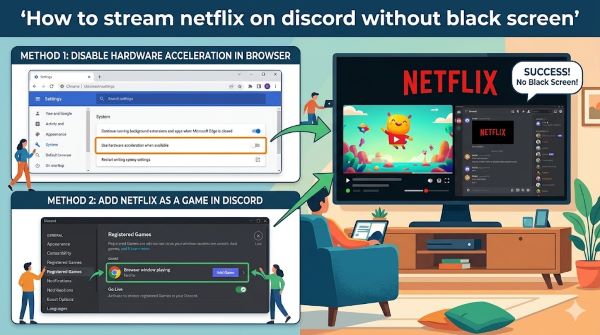
Try disabling hardware acceleration in your browser settings.
Restart the browser and try screen sharing again.
Hardware acceleration sometimes interferes with content protection capture.
Method Three: Watch Party Using External Tools:
Understanding Limitations of Direct Sharing:
Netflix’s DRM makes direct sharing difficult. Netflix doesn’t officially support screen sharing.
Third-party watch party services work differently. They sync playback between users but don’t share video.
Some Discord bots claim to help but often don’t bypass Netflix protection effectively.
Using Netflix’s Built-In Watch Party Feature:
Netflix has a feature called Party Mode on some plans.
However, this doesn’t work through Discord. It’s Netflix’s own platform.
It lets your friends watch simultaneously and chat in Netflix.
This is a better experience than screen sharing but doesn’t use Discord.
Third-Party Watch Party Services:
Services like Teleparty sync Netflix playback between users.
Everyone needs the service installed. Participants view on their own Netflix accounts.
This respects Netflix’s DRM because everyone has legitimate access.
It’s technically not screen sharing but accomplishes the goal.
Method Four: Using Screen Share With Workarounds:
Changing Discord Settings:
Some Discord users disable hardware acceleration.
Others change graphics settings for the Discord application.
Go to Discord User Settings > Advanced > Enable Reduced Motion.
These settings sometimes improve screen capture.
Updating Graphics Drivers:
Outdated graphics drivers sometimes conflict with screen sharing.
Visit your graphics card manufacturer’s website.
Download the latest driver for your specific card model.
Install and restart your computer.
Try screen sharing again after driver update.
Disabling Browser Extensions:
Browser extensions sometimes interfere with Netflix stream sharing.
Temporarily disable all extensions.
Try how to stream Netflix on Discord again.
If it works, enable extensions one by one to find the culprit.
Some VPN extensions particularly cause issues with DRM content.
How to Share Screen on Discord: General Best Practices:
Before You Start Sharing:
Test your audio levels. Adjust microphone volume so friends hear you clearly.
Close tabs and windows with sensitive information. They might show during share.
Disable notifications so pop-ups don’t interrupt the viewing experience.
Have Netflix ready at your chosen show or movie.
During Active Sharing:
Keep your internet connection stable. Avoid bandwidth-heavy activities.
Stay in the Discord channel while sharing. Leaving ends the share.
Monitor for freezing or buffering. Your internet speed affects stream quality.
Check your friends’ feedback about video and audio quality.
After Sharing Ends:
Thank your friends for watching together. Build community in your Discord.
Note what worked and what didn’t. This helps for future streams.
If you encountered discord black screen, document what fixed it.
Understanding Can You Stream Netflix on Discord:
Official Answer:
Netflix’s terms of service don’t explicitly prohibit screen sharing for personal use.
However, Netflix’s technical protections make it very difficult.
Can you stream netflix on discord technically, but not easily due to DRM.
Can you screen share netflix depends on your specific setup and method.
What Works and What Doesn’t:
Direct screen sharing of Netflix video has limited success due to DRM protection.
Audio usually comes through successfully when screen sharing works.
Some clips or shows share better than others. It’s inconsistent.
Desktop app and web app behave differently. Test both if one fails.
Legal Considerations:
Personal, non-commercial sharing for a few friends is generally considered acceptable.
Large-scale or monetized streaming violates Netflix’s terms.
Screen sharing for one-time viewing with friends falls into gray territory.
Netflix doesn’t actively pursue casual users but could in theory.
Troubleshooting Common Issues:
Problem Black Screen Appears During Share:
The Netflix DRM protection is blocking capture.
Try the browser method instead of the desktop app.
Use a watch party service as an alternative.
Try sharing the audio separately while playing video locally for friends.
Problem Audio Cuts Out:
Check Discord audio settings during screen share.
Ensure application audio is enabled.
Try adjusting Discord’s audio bitrate settings.
Restart both Discord and Netflix.
Problem Video Freezes or Stutters:
Your internet connection might be insufficient for streaming.
Close other applications using bandwidth.
Move closer to your WiFi router if using wireless.
Ask your friends to lower their Discord video quality settings.
Problem Friends Can’t Hear Movie:
Make sure audio is enabled in screen share settings.
Check Netflix volume is turned up.
Test your audio with a Discord friend outside of screen share.
Some Discord bots can relay audio separately if screen share audio fails.
Alternative Solutions to Consider:
Separate Screen and Audio:
Some Discord users screen share the video silently.
They use a separate Discord channel or voice chat for audio discussion.
Friends follow along on their own Netflix accounts.
This respects Netflix’s protection while still sharing the experience.
Streaming Services That Support Sharing:
YouTube and other services have better screen share support.
Some platforms are designed for shared viewing.
If how to screen share netflix on discord remains difficult, consider these alternatives.
Local Viewing Solutions:
Some friend groups use local viewing solutions.
Connecting a laptop to a projector or TV for group viewing works well.
This avoids internet streaming altogether.
Best Practices For Successful Sharing:
Before Attempting Share:
Check if your Discord has streaming permission enabled.
Verify your friends have permission to join voice channels.
Test your screen share on a non-Netflix content first.
Netflix compatibility is problematic so test with something simpler.
Technical Optimization:
Update all relevant software before attempting share.
Clear browser cache if using web-based Netflix.
Check that no firewalls block Discord or Netflix.
Restart your computer before trying screen share.
When Problems Arise:
Remain patient. Screen sharing Netflix is inherently unreliable due to DRM.
Try alternate methods. Don’t rely on one approach.
Consider explaining to your friends that Netflix DRM makes this difficult.
Most Discord users understand the technical limitations.
Key Takeaways:
- How to stream netflix on discord without black screen requires understanding Netflix’s DRM protection and working around it.
- Discord black screen appears because Netflix’s content protection blocks screen capture.
- How to stream Netflix on Discord is technically possible but unreliable due to content protection.
- How to screen share on discord works better with non-protected content.
- Netflix stream protection exists specifically to prevent unauthorized copying and sharing.
- How to share screen on discord involves using the screen share button and selecting your Netflix window.
- Can you stream netflix on discord is the question most users have. The answer is sometimes, with limitations.
- Can you screen share netflix depends on your specific setup, software versions, and browser choice.
- How to screen share netflix on discord works best when Netflix plays in a browser rather than the desktop app.
- Black screen during sharing usually indicates DRM protection is blocking capture.
- Try the browser version of Netflix if the desktop app doesn’t work.
- Disable hardware acceleration and browser extensions to improve compatibility.
- Update your graphics drivers for better screen capture performance.
- Consider watch party services as an alternative to direct screen sharing.
- Test screen sharing with non-Netflix content first to ensure it works generally.
- Have your friends follow along on their own accounts while you share audio.
- Build a community culture where screen sharing limitations are understood and accepted.
- Document what works in your specific setup for future reference.
- Restart both applications if screen sharing fails initially.
- Audio usually works better than video when sharing Netflix through Discord.