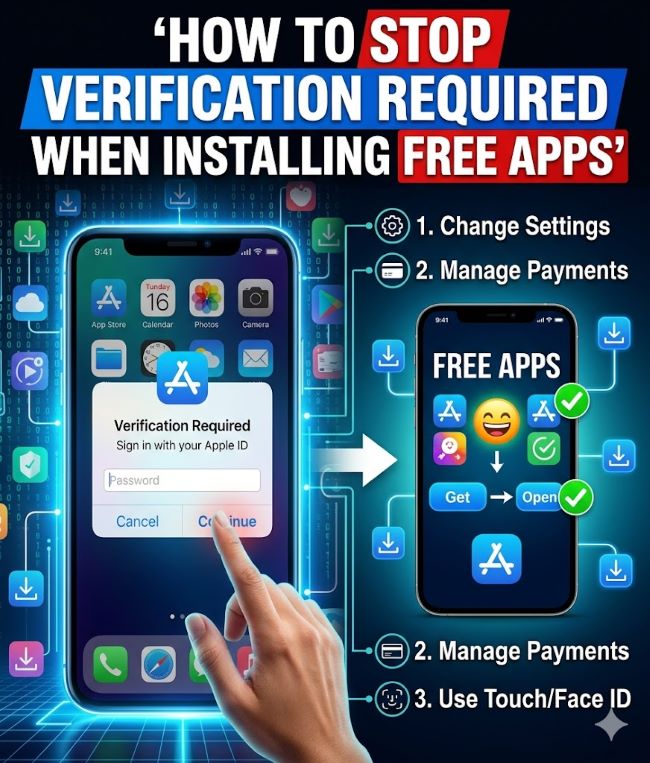
You tap the Get button on a free app in the App Store. You’re ready to download it. Then a pop-up appears: “Verification Required.” You have to sign in with your Apple ID. Enter your payment information. Verify your identity. This happens every time you try to download a free app, and it’s incredibly annoying. You’re not buying anything, so why does Apple keep asking for verification?
The verification required message appears even for free apps because your Apple ID is a unified account connected to your payment system. Apple checks your account status before allowing any downloads, paid or free. But this doesn’t mean you’re stuck with constant verification interruptions. Understanding why they happen and knowing how to stop verification required when installing free apps gives you control back.
This guide covers the main reasons for app store verification required messages and multiple methods to fix the issue on your iPhone or iPad.
Why Does App Store Ask for Verification on Free Apps
The verification required app store message feels backwards when you’re downloading something free. You’re not paying anything. Why does Apple need to verify anything?
The answer involves Apple’s security and account management systems. Your Apple ID is connected to your payment methods, subscriptions, and purchase history. Every interaction with the App Store triggers a check of your account status, even for free downloads. This verification serves several purposes:
Security verification ensures you’re the legitimate account holder. Someone could steal your Apple ID and use it to install apps on a device. Requiring verification confirms this is really you.
Payment method validation checks whether your current payment method is active and valid. If your credit card expired or your account has problems, Apple wants to know before you download something.
Unpaid balance detection identifies whether you have outstanding payments from previous purchases. If you owe Apple money, they want that handled before you proceed.
Account status checks determine whether your account is in good standing. If there’s a billing problem with a previous purchase, Apple flags this and asks for verification.
Country or region changes trigger verification if you recently moved to a different country. This prevents fraud and ensures you’re using appropriate payment methods for your location.
None of these require you to actually pay for free apps. But Apple needs to check them before approving the download.
Update Your Payment Method
One of the most common causes of why does my app store keep asking for verification is an outdated or invalid payment method. Your credit card might have expired. You might have moved to a new country. Your billing address might have changed. All of these trigger verification prompts.
Open the Settings app on your iPhone or iPad. Tap your name at the top. Select Payment & Shipping. Enter your Apple ID password if prompted.
You’ll see your current payment method. Tap Add Payment Method to add a new one. You can use a credit card, debit card, Apple Pay, or PayPal. Enter the correct information for your new payment method.
If you want to remove an expired card, tap Edit next to your current payment method. Tap the red delete button next to the old payment. Confirm the deletion.
Important: You need at least one valid payment method on file with Apple. Even if you only download free apps, Apple requires a payment method for your account. It doesn’t charge you for free downloads, but the method must be valid and up-to-date.
Once you’ve updated your payment method, exit Settings. Go back to the App Store. Try downloading your free app. The verification required message should be gone.
Clear Any Unpaid Balances
A billing problem with a previous purchase is a major cause of why is my app store asking for billing information. If you have any unpaid or failed purchases on your account, Apple locks you out of downloads until you handle them.
Open Settings and tap your name. Go to Media & Purchases. Tap View Account from the menu. Tap Purchase History.
Scroll through your purchase history looking for any items marked as unpaid or with a failed payment status. These appear differently than successful purchases. Select the unpaid purchase and complete the payment.
If multiple purchases show as unpaid, you’ll need to pay each one. Once all balances are cleared, the verification required prompt should stop appearing.
You can also handle this through the App Store directly. Tap your profile icon in the App Store. Select Account. Tap Purchase History. Look for any unpaid items and complete the payments.
Some subscriptions have unpaid balances too. While in your account settings, tap Subscriptions. Check that all active subscriptions are paid and current.
Check Your Subscription Status
Sometimes why can’t i download apps on my iphone without payment method comes from a failed subscription renewal. You have a subscription to something like iCloud+ or Apple Music. The renewal failed because your payment method is outdated or has insufficient funds.
Open Settings. Tap your name. Select Subscriptions. You’ll see all your active subscriptions. Tap on any subscription marked as having payment problems.
Select Fix Payment Method or Update Payment Method. Enter your updated payment information. Apple will attempt to process the renewal. Once the payment succeeds, subscription-related verification blocks should clear.
Adjust Screen Time Restrictions
If you’ve enabled Screen Time on your device, parental controls might be blocking free app downloads. Some users unknowingly enable restrictions that require password or verification for all App Store purchases, including free ones.
Open Settings and scroll down to Screen Time. If you haven’t enabled Screen Time, you’ll see Turn On Screen Time. If you see this, you don’t have restrictions enabled and can skip this section.
If Screen Time is enabled, tap Content & Privacy Restrictions. Enter your Screen Time passcode if prompted. Tap iTunes & App Store Purchases.
Look at these settings:
Installing Apps should be set to Allow. If it’s set to Require Password or Don’t Allow, change it to Allow.
In-app Purchases should be set to Allow. If restricted, change it.
Free Downloads should be set to Don’t Require password. If it requires a password, change it to Don’t Require.
These adjustments allow you to download free apps without extra verification barriers. Exit Settings and try downloading your free app again.
Turn Off Password Requirement for Free Downloads
Some users have a specific setting that requires a password every time they download a free app. Disabling this requirement stops the frequent verification required prompts.
Go to Settings. Tap your name at the top. Select Media & Purchases.
Look for Password Settings or Require Password. If you don’t see this option, you have Face ID or Touch ID enabled for purchases, and you’ll need to use biometric authentication instead.
Tap the toggle next to Free Downloads. You want this set to Don’t Require. This allows free app downloads without entering a password each time.
Exit Settings and attempt your download. The verification should be skipped for free apps.
Sign Out and Sign Back In
Sometimes temporary account glitches cause the verification required app store message to appear repeatedly even though there’s no actual problem with your account. Signing out and back in refreshes your connection to Apple’s servers and clears these temporary issues.
Go to Settings. Tap your name at the top. Scroll down and tap Sign Out.
You’ll be asked to enter your Apple ID password to turn off Find My. Enter your password. Your device signs out of your Apple ID.
Wait a few moments. Then go back to Settings. Tap Sign In with your Apple ID. Enter your Apple ID email and password. Your device signs back in.
Go to the App Store. Try downloading your free app. The verification required message often disappears after this sign-out and sign-in cycle.
Enable Face ID or Touch ID for App Store Purchases
Rather than entering passwords or seeing verification required prompts, you can use Face ID or Touch ID to authenticate App Store purchases. This streamlines the process and reduces repeated verification messages.
Go to Settings. Select Face ID & Passcode or Touch ID & Passcode depending on your device.
Enter your device passcode. Scroll down to find iTunes & App Store in the section labeled USE FACE ID FOR or USE TOUCH ID FOR.
Toggle the switch next to iTunes & App Store. This enables biometric authentication for App Store purchases.
Now when you attempt to download an app, Face ID or Touch ID authenticates the purchase instead of requiring a password or verification. This is faster and eliminates most verification interruptions.
Restart Your iPhone or iPad
A simple device restart clears temporary memory issues and software glitches that sometimes cause app store verification required to appear repeatedly.
Hold the Power button on your iPhone. If you have an iPhone with a home button, hold both the power button and home button together.
Slide to Power Off. Wait about 30 seconds for the device to fully shut down.
Press the Power button again to turn your device back on. Wait for the lock screen to appear and the device to fully boot.
Go to the App Store. Try downloading your free app. Many users find that the verification required message disappears after a restart.
When All Else Fails
If you’ve tried every method above and how to stop verification required when installing free apps still eludes you, your Apple ID might have deeper account issues. Apple’s security systems might have flagged your account for unusual activity or detected a potential compromise.
Contact Apple Support directly. Explain that you’re getting constant verification required messages when downloading free apps and you’ve already tried updating payment methods, clearing balances, and adjusting settings.
Apple Support can check your account status in detail, identify what’s triggering verification, and reset account settings if needed. They might recommend temporarily updating your password for security purposes.
Don’t use third-party unlocking tools that claim to remove your Apple ID. These often violate Apple’s terms of service and can permanently damage your ability to use App Store features.
Key Takeaways
- Verification required appears on free app downloads because your Apple ID is unified with your payment system. Apple checks account status for all downloads, paid or free, as a security measure.
- Why can’t i download apps on my iphone without payment method usually comes from an invalid or expired payment method. Update your payment information in Settings > Your Name > Payment & Shipping to fix this.
- Check for billing problem with a previous purchase in your Purchase History. Unpaid or failed payments block all downloads. You must clear these balances before Apple allows new downloads.
- Why is my app store asking for billing information might stem from failed subscription renewals. Check your Subscriptions and update payment methods for any subscriptions with payment problems.
- Screen Time restrictions can require verification for all App Store activity. Adjust these by going to Settings > Screen Time > Content & Privacy Restrictions > iTunes & App Store Purchases and setting everything to Allow.
- Turn off password requirement for free downloads by going to Settings > Your Name > Media & Purchases and toggling Don’t Require for free downloads.
- Use Face ID or Touch ID authentication instead of passwords. Go to Settings > Face/Touch ID & Passcode and toggle on iTunes & App Store under the appropriate biometric section.
- If no method works, sign out and sign back into your Apple ID to refresh your account connection. A simple device restart also clears temporary glitches causing verification messages.