Your Samsung Smart TV comes loaded with mainstream apps. Netflix, YouTube, Prime Video. But you want something different. You need a specific app that isn’t in the official Samsung TV app store. You wonder if there’s a way to add apps to Samsung TV beyond what Samsung offers officially. The answer exists, but it’s more complicated than installing apps on your phone.
Learning how to install 3rd party apps on Samsung smart tv requires understanding that Samsung TVs use Tizen OS, not Android. This fundamental difference changes everything about how you approach adding apps to your TV. The good news is that multiple methods exist, ranging from simple to technical. This guide walks you through each option so you can choose the safest approach for your situation.
Understanding Samsung TV Operating System
The first thing to understand about how to download apps on Samsung smart tv is that Samsung Smart TVs don’t run Android. They run Tizen OS, a Linux-based operating system developed by Samsung. This distinction matters enormously because it affects everything you can install.
Android apps come in APK format (Android Package). These won’t work on Samsung Tizen TVs. If you search online and find guides telling you to download APK files for your Samsung TV, those guides are either wrong or referring to Android TV devices, not Samsung TVs.
Samsung’s equivalent to APK files is TPK format (Tizen Package). These are the app files built for Tizen OS. However, not all apps have TPK versions. Many developers create Android apps but never develop Tizen versions. This limits what you can officially install.
This is why many users feel frustrated when trying to add app to samsung tv. The app they want might not exist as a TPK file. Understanding this technical foundation helps you navigate the reality of Samsung TV app limitations.
The Official Samsung Apps Store
The easiest and safest way to download apps on samsung tv is through the official Samsung app store. This is the official marketplace where Samsung curates and hosts approved applications.
Press the Home button on your remote. Navigate to Apps. You’ll see the App Store option. From here, you can browse available applications, read descriptions, and install them directly to your TV. All these apps are pre-checked by Samsung for compatibility and security.
The limitation is selection. The Samsung TV app store has fewer apps than Google Play Store or Apple App Store. Popular services like Netflix, YouTube, and Prime Video are there. So are sports apps, news apps, and music streaming services. But niche apps might not be available.
For most users, the official store contains everything they need. Before pursuing more complex installation methods, check whether your desired app is available here. If it is, this is definitely the safest and easiest approach.
Browser Screen Mirroring as a Workaround
If how to download apps on samsung tv doesn’t lead to your desired app, screen mirroring from your phone offers a workaround. You’re not installing the app on the TV. Instead, you’re mirroring your phone’s screen and using the app through your phone.
This works when you need to use an app but don’t require it installed on the TV itself. Video conferencing apps like Zoom or Skype benefit from this approach. You can mirror your phone to your TV while participating in a video call. Streaming services work similarly.
Go to your TV’s Settings. Find Screen Mirroring or AirPlay. Enable the feature. On your smartphone, use the screen mirroring feature to connect to your TV. Your phone’s screen appears on your TV. You control the app from your phone, and the display shows on your larger TV screen.
This isn’t as seamless as having the app installed natively on the TV, but it works when alternatives aren’t available.
Using External Streaming Devices
The safest way to access apps not available in the Samsung app store is through an external streaming device. Amazon Fire TV Stick, Chromecast with Google TV, or Apple TV connect to your TV via HDMI. They run their own operating systems and have access to their own app stores.
An Amazon Fire Stick connects to your TV’s HDMI port and has access to Amazon’s app store, which includes thousands of apps. You can install any app available in the Fire Stick’s ecosystem. The Fire Stick handles all the app functionality. Your Samsung TV becomes just a display.
The advantage of this approach is that your TV’s system remains untouched. You’re not modifying your TV’s operating system or installing anything directly on it. If something goes wrong with the Fire Stick, you just unplug it. Your TV continues working normally.
This method costs money. Fire TV Sticks range from $40 to $150 depending on the model. But if you need access to multiple third-party apps, the cost is often worth it for the simplicity and security.
Developer Mode and TPK Installation
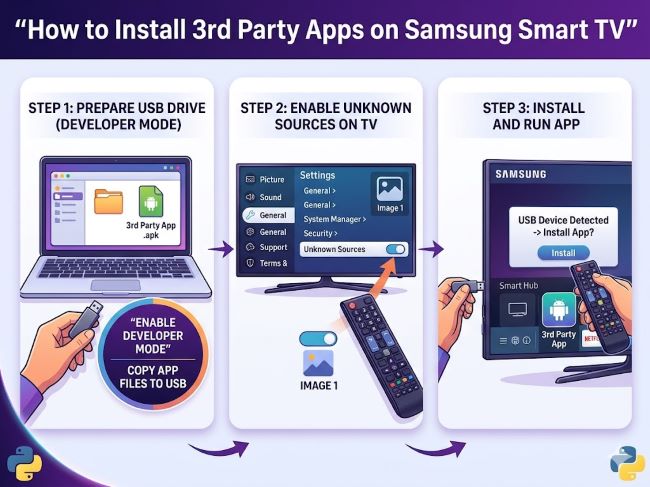
For users willing to engage with more technical processes, installing TPK files directly on your Samsung TV is possible. This requires enabling Developer Mode and allowing installation from unknown sources.
First, understand that this voids some warranty protections and introduces security risks. Samsung restricts third-party app installation specifically to protect your TV from malware. By enabling developer mode, you’re reducing those protections.
To enable Developer Mode, navigate to your TV’s Settings. Go to Apps. Look for an option related to Developer or Developer Mode. The exact menu varies by TV model and firmware version. Some TVs require you to enter a specific sequence of numbers to unlock developer mode.
Once developer mode is enabled, you must also enable Installation from Unknown Sources. This tells your TV to accept TPK files from sources other than the official Samsung app store.
With developer mode enabled, you can sideload TPK files using several methods. The most common uses a USB drive. Download the TPK file on a computer. Transfer it to a USB drive. Connect the USB drive to your Samsung TV. Use the File Manager to locate the TPK file and select Install.
A more technical method uses Smart Development Bridge (SDB) and command-line tools, which requires installing software on your computer and connecting via USB or network. This approach is powerful but requires comfort with technical processes.
Finding Trustworthy TPK Files
The biggest risk with how to install 3rd party apps on samsung smart tv through TPK sideloading is malware. Malicious TPK files can compromise your TV’s security, expose your home network, or steal personal information.
Before downloading any TPK file, research the source thoroughly. Download only from reputable developer websites or verified communities. Avoid websites that seem designed to distribute pirated or cracked apps. Stay away from sites promising free versions of paid apps.
Check whether the app you want actually has a TPK version. Not all Tizen developers distribute their apps publicly. Some distribute only through Samsung’s official channels. Others have abandoned Tizen development entirely.
When you do find a TPK file, check the website’s reputation. Look for recent posts from other users confirming they successfully installed it. Search for any security warnings about that particular file.
Safety Considerations When Sideloading
Sideloading third-party apps bypasses Samsung’s security checks. This comes with genuine risks.
Malware risk is real. An untrusted TPK file might contain code that damages your TV, exposes your network, or steals data. Your TV is connected to your home network. A compromised TV could potentially give attackers access to other devices on that network.
Warranty voiding is another consequence. Samsung does not support modifications to your TV’s operating system. Installing third-party apps through developer mode might void your warranty. If your TV breaks and you’ve enabled developer mode, Samsung might refuse service.
Performance issues can result from incompatible or poorly coded apps. A TPK file designed for older TV models might crash on newer ones. Apps written by amateur developers might drain resources or cause your TV to freeze.
System stability could suffer. A bad app might corrupt system files or cause operating system problems that require factory reset.
These risks are why Samsung restricts third-party apps officially. Before enabling developer mode and sideloading, consider whether the app is worth these potential consequences.
The Aiyifan App and Community Solutions
You may have encountered mentions of aiyifan app when researching add apps to samsung tv solutions. Aiyifan is a third-party app designed specifically for Tizen TV users who want access to more content. Some users report success installing it, while others encounter compatibility issues.
Before attempting to install aiyifan app, verify that it’s compatible with your specific Samsung TV model and firmware version. Compatibility varies significantly. An old TV might not work with it. A newly updated TV might have compatibility issues.
Research community forums to see what current users say about aiyifan app on your TV model. If recent posts confirm it works on your specific TV, the risk is lower. If you find warnings or reports of problems, skip it.
The community approach means you’re relying on user testing rather than official support. This has benefits and drawbacks. Benefits include creative solutions and apps others have discovered. Drawbacks include inconsistency and lack of official support if something breaks.
Updating Apps on Your Samsung TV
Once you’ve installed apps through any method, keeping them updated is important for security and functionality. Apps receive updates for new features, performance improvements, and security patches.
In the official Samsung app store, most apps have automatic updates enabled. Go to the Apps section. Navigate to App Settings at the bottom. You can toggle auto-update on to keep all installed apps current automatically.
For manually updating a single app, navigate to it in your Apps section. Press and hold the Select button on your remote. A menu appears. Choose Update if an update is available.
For apps installed through sideloading or external devices, the update process depends on how the app was installed. TPK files might not update automatically. External devices like Fire Stick handle updates through their own app store and update mechanisms.
When to Accept App Limitations
Not every app you want will work on your Samsung TV. This is a reality of Tizen OS. Rather than spending hours attempting risky workarounds, sometimes the better choice is accepting that limitation.
Ask yourself whether you truly need the app on your TV or whether an alternative would work. Do you need this specific streaming service, or would another service with more available apps satisfy your needs? Do you need a particular game, or would a different game available in the Samsung app store suffice?
Sometimes the existence of apps in the official store makes the limitation moot. If you want to stream video, you have Netflix, YouTube, Prime Video, Disney+, and others. If you want music, Spotify, Apple Music, and others are available. For many common uses, official store apps cover your needs.
Key Takeaways
- Samsung Smart TVs run Tizen OS, not Android. This means APK files for Android won’t work. You need TPK files (Tizen Package) specifically designed for Tizen OS, which are rarer and less commonly available.
- The official Samsung app store is the safest and easiest way to add apps to Samsung TV. Check here first before pursuing riskier third-party installation methods.
- Screen mirroring from your smartphone provides a workaround when apps aren’t available on the TV itself. You’re not installing the app, but you can use it through your phone displayed on your larger TV.
- External streaming devices like Amazon Fire Stick or Chromecast with Google TV offer the safest way to access thousands of additional apps. These devices connect via HDMI and run their own operating systems, leaving your TV’s system untouched.
- Developer Mode allows TPK sideloading through USB drives or command-line tools, but this voids warranty protections and introduces malware risks. Only enable developer mode if you understand and accept these consequences.
- Never sideload TPK files from untrusted sources. Malware-infected apps can compromise your TV’s security and home network. Research sources thoroughly and check community forums for confirmation before installation.
- Aiyifan app and other community solutions work inconsistently across different TV models and firmware versions. Verify specific compatibility with your TV before attempting installation.
- Keep all apps updated, whether through automatic updates or manual updating, to ensure security patches and performance improvements are applied.